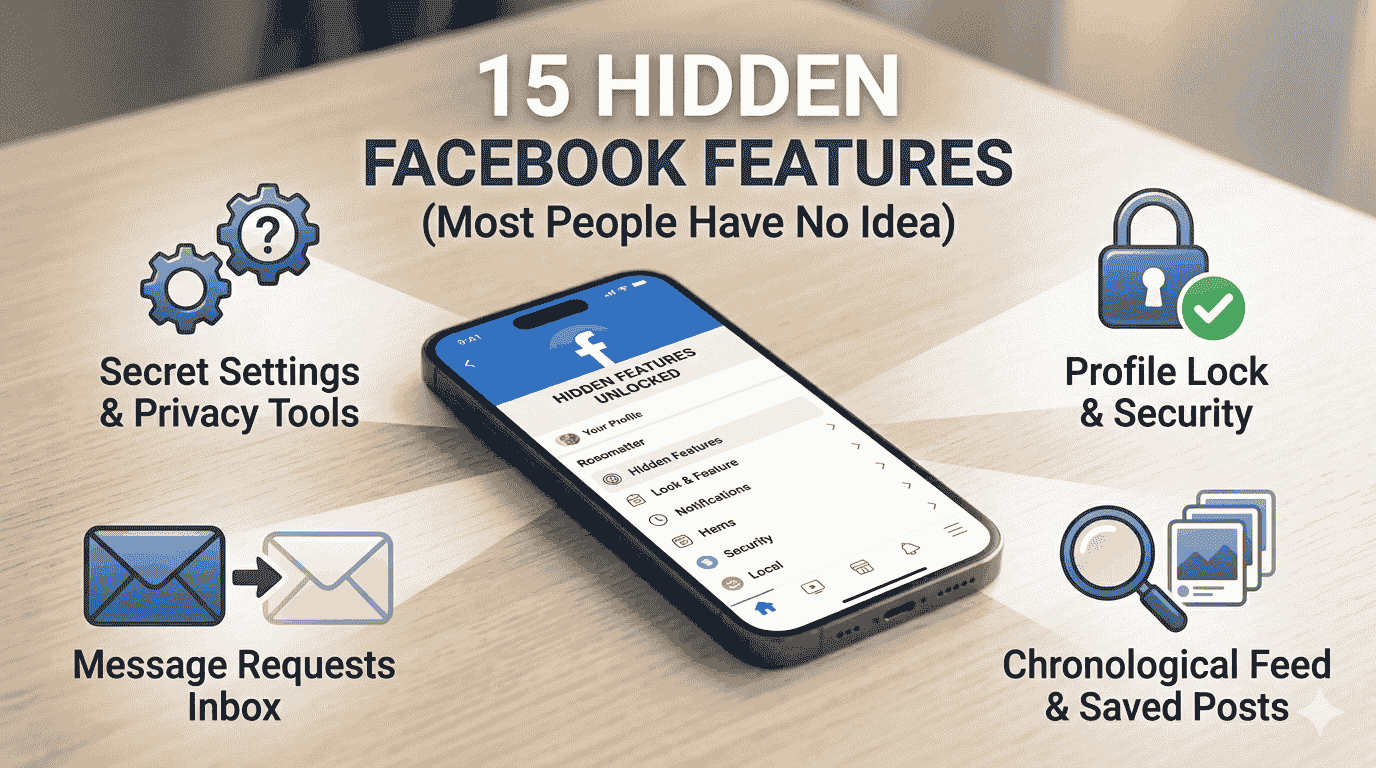
15 Hidden Facebook Features Everyone Should Know (Most People Have No Idea)
You use Facebook every day but are you actually using it the right way? Facebook is packed with hidden features, secret settings, and powerful tools that most users have absolutely no idea about. These features can protect your privacy, save you time, and make your experience much better.
In this post, I am going to reveal 15 hidden Facebook features that everyone should know step by step, so you can start using them today.
Let’s go.
1. Secret “Hidden” Message Inbox (Message Requests Folder)
Did you know Facebook has a second inbox that most people never check?
When someone who is not your friend sends you a message, it does not go to your main inbox. It goes to a hidden “Message Requests” folder and you never get a notification.
You could be missing important messages from clients, old friends, or business contacts right now.
How to find it:
- Open Facebook Messenger
- Tap your profile photo (top left)
- Tap Message Requests
- Tap Spam as well sometimes real messages end up there too
Check this folder right now you might be surprised what is waiting for you.
2. See Who Viewed Your Facebook Profile
Facebook does not officially show who viewed your profile but there is a workaround.
How to do it:
- Open Facebook in a browser (not the app) on your phone or computer
- Go to your profile page
- Press Ctrl + U (Windows) or Cmd + Option + U (Mac) to view page source
- Press Ctrl + F and search for “BUDDY_ID”
- The numbers next to it are Facebook user IDs of people who recently visited your profile
This is not 100% accurate but gives you a general idea.
3. Download Your Entire Facebook Data
Every photo, video, message, post, and reaction you ever made on Facebook you can download it all.
How to download:
- Go to Settings & Privacy → Settings
- Click Your Facebook Information
- Click Download Your Information
- Select date range and file format (HTML is easier to read)
- Click Create File Facebook will notify you when it’s ready to download
This is useful as a personal backup or if you ever want to delete your account.
4. Turn Off “Active Now” Status
When you open Facebook or Messenger, everyone can see you are “Active Now” with a green dot. If you want privacy, you can turn this off.
How to turn it off:
- Open Messenger
- Tap your profile photo
- Tap Active Status
- Toggle it OFF
Now nobody can see when you are online but you also cannot see when others are active.
5. Lock Your Facebook Profile
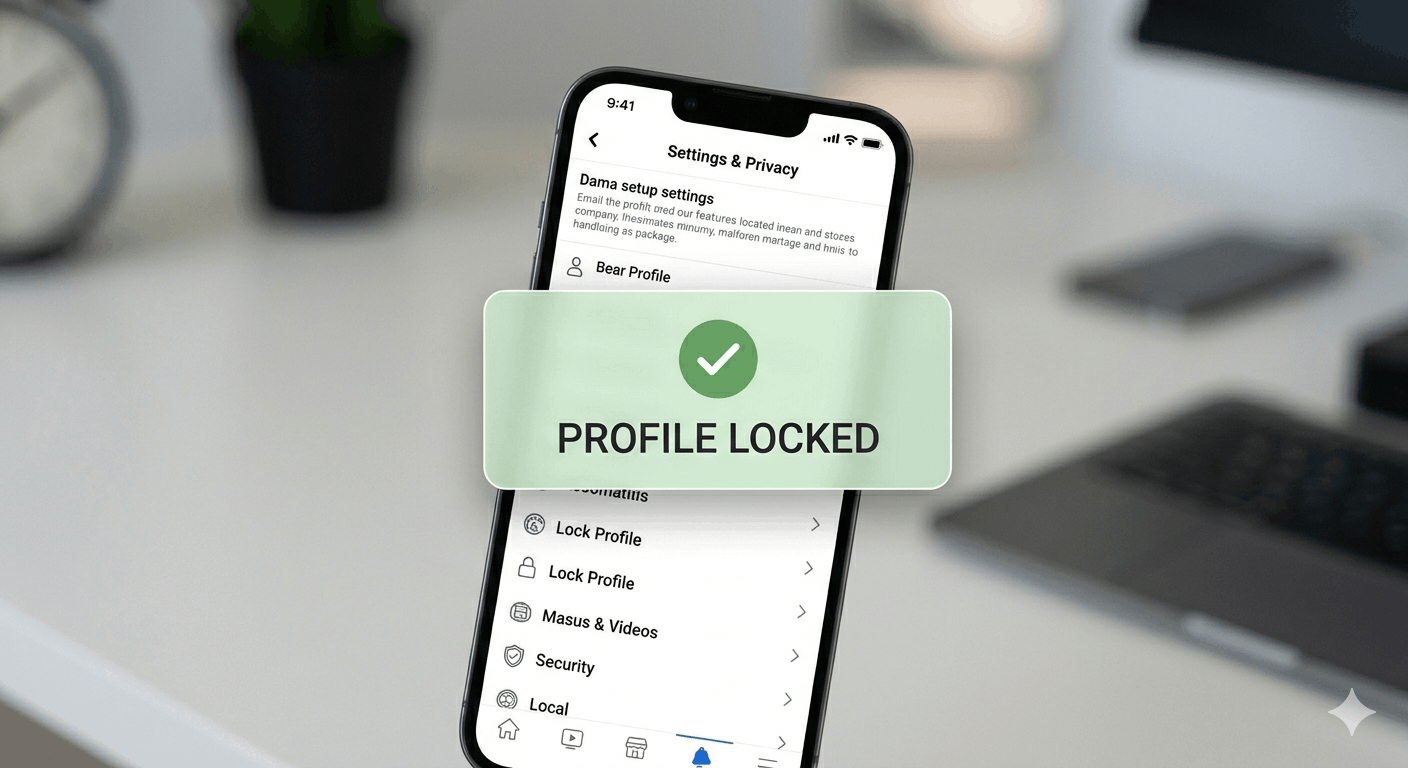
Profile Lock prevents people who are not your friends from seeing your photos, posts, and cover photo clearly. It is especially useful to protect your privacy from strangers.
How to lock your profile:
- Go to your Facebook profile
- Tap the three dots (…) below your cover photo
- Tap Lock Profile
- Tap Lock Your Profile
Once locked, non-friends see only a blurred version of your profile photos and cannot see your posts.
6. See Everything Facebook Knows About You (Off-Facebook Activity)
Facebook tracks your activity on other apps and websites even when you are not using Facebook. This is how it shows you targeted ads.
How to see and clear it:
- Go to Settings & Privacy → Settings
- Tap Your Facebook Information
- Tap Off-Facebook Activity
- You will see a list of every app and website that shared your data with Facebook
- Tap Clear History to disconnect this data from your account
- Tap Manage Future Activity → turn off to stop future tracking
This is a big privacy win that most users never use.
7. Create a Secret Group or Private Event
Most people only use public Facebook groups and events. But you can create completely secret groups where only invited members know it exists.
How to create a secret group:
- Click Groups → Create New Group
- Set Privacy to Secret
- Only people you invite can find, see, or join this group
Perfect for family groups, close friend groups, or private business communities.
8. Snooze Someone Without Unfriending Them
Tired of seeing someone’s posts but do not want to unfriend or block them? Facebook’s Snooze feature hides their posts for 30 days without them knowing.
How to snooze:
- When you see their post in your feed, tap the three dots (…) in the top right of the post
- Tap Snooze [Name] for 30 days
Their posts disappear from your feed for 30 days automatically.
9. Read News Feed in Chronological Order
Facebook’s default algorithm shows posts it thinks you will like not in order of time. But you can switch to a chronological feed.
How to do it:
- Tap the three lines (☰) menu
- Scroll down and tap Most Recent
- Your feed now shows posts in order of when they were posted
Note: Facebook resets this to “algorithmic” feed next time you open the app, so you may need to switch back each time.
10. Facebook Pay Send Money Directly
Did you know you can send money to friends directly through Facebook Messenger for free?
How to use it:
- Open a conversation in Messenger
- Tap the + icon
- Tap Payments
- Enter the amount and send
Available in many countries. Free for personal transfers. No fees.
11. Save Posts to Read Later
See an interesting article or video but do not have time right now? Facebook has a built-in “Save” feature.
How to save:
- Tap the three dots (…) on any post
- Tap Save Post (or Save Video, Save Link)
- To view saved items: tap ☰ Menu → Saved
This is like a personal reading list inside Facebook.
12. Create Polls in Stories and Posts
You can create interactive polls in your Facebook posts, stories, and even in group posts great for getting opinions from your friends or followers.
How to create a poll:
- Create a new post
- Tap the three dots or More options
- Select Poll
- Type your question and answer options
- Post it
Your friends can vote with one tap.
13. Use Facebook as a Page (Not Your Personal Profile)
If you have a Facebook Page (for a business or blog), you can browse Facebook, like posts, and leave comments as your Page not your personal profile.
How to switch:
- Tap your profile photo (top right)
- Tap Switch Account or See All Profiles
- Select your Page
Now everything you do is as your brand not your personal account.
14. Facial Recognition Turn It Off
Facebook uses facial recognition to identify you in photos and suggest tags. Many people do not know this is on by default.
How to turn it off:
- Go to Settings → Face Recognition
- Select No
Now Facebook will not use your face to identify you in photos.
15. Hide Your Birthday, Phone Number, and Email
Your birthday, phone number, and email are often visible to more people than you realize on Facebook.
How to hide them:
- Go to your Profile → About
- Click Contact and Basic Info
- Click the edit icon next to each piece of information
- Change the audience to Only Me
This simple step protects you from birthday-based scams and unwanted contact.
Quick Summary All 15 Features
| Feature | What It Does |
|---|---|
| Hidden inbox | Find messages from non-friends |
| Profile viewer trick | See who visited your profile |
| Download your data | Get all your Facebook history |
| Turn off Active Status | Go invisible online |
| Lock your profile | Protect from strangers |
| Off-Facebook Activity | Stop cross-app tracking |
| Secret groups | Private invite-only groups |
| Snooze someone | Hide posts without unfriending |
| Chronological feed | See newest posts first |
| Facebook Pay | Send money via Messenger |
| Save posts | Read interesting content later |
| Create polls | Get opinions from friends |
| Use as Page | Post as your brand |
| Turn off face recognition | Stop facial tracking |
| Hide personal info | Protect birthday and contacts |
Final Thoughts
Facebook has many features hidden deep inside its settings that most users never discover. Go through this list one by one and start using the ones that matter most to you especially the privacy features.
Your personal information deserves protection. Start with turning off Off-Facebook Activity and locking your profile today.