15 Hidden Instagram Features Everyone Should Know (Secret Tips Inside)
Instagram has over 2 billion active users but most of them are missing dozens of hidden features that can improve their privacy, grow their account faster, and make the experience much better.
In this post, I am going to reveal 15 hidden Instagram features everyone should know from privacy tricks to growth hacks that most people never discover.
1. Secret “Close Friends” Story
You can post Stories that only a select group of people can see without anyone else knowing it exists.
How to create a Close Friends list:
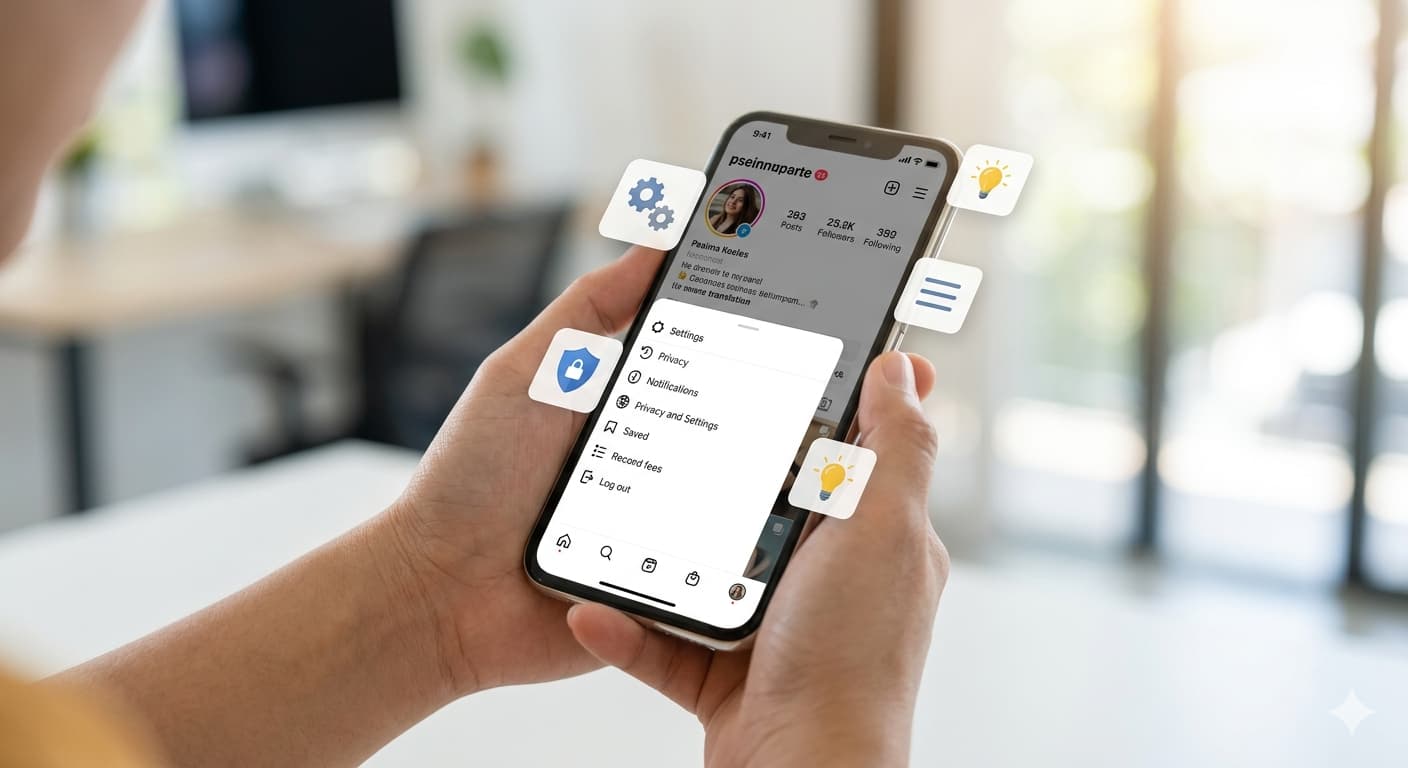
- Go to your Profile → three lines (☰) → Close Friends
- Add the people you want
- When posting a Story, tap Close Friends (green icon) instead of Your Story
Only people on your Close Friends list can see these Stories. Everyone else does not even know you posted.
2. See Who Saved Your Posts
Instagram tells you how many people saved your post but most people never check this.
How to check:
- Tap View Insights below any of your posts
- Scroll down to see Saves count
- Also shows Reach, Profile Visits, and Follows from that post
High saves = Instagram shows your post to more people. Create content worth saving.
3. Restrict Someone Without Blocking Them
Blocking someone is obvious they know immediately. Restricting is completely secret.
What Restricting does:
- Their comments on your posts are only visible to them (others cannot see it)
- Their DMs go to a Message Request you are never shown as “seen”
- They have no idea they are restricted
How to restrict:
- Swipe left on their comment → tap Restrict
- Or go to their profile → three dots → Restrict
Perfect for dealing with toxic people or unwanted attention without drama.
4. Download Your Own Photos and Videos
Want to save all your Instagram posts to your phone? Instagram lets you download everything.
How to download all your data:
- Go to Settings → Account → Download Data (or Your Activity → Download Your Information)
- Enter your email and request download
- Instagram emails you a link within 48 hours with all your photos, videos, messages, and data
5. Turn Off Suggested Posts (Reduce Addictive Scrolling)
After you finish seeing posts from accounts you follow, Instagram automatically shows “Suggested Posts” to keep you scrolling longer. You can turn this off.
How to reduce suggested content:
- When you see a Suggested Post, tap the three dots (…)
- Tap Not Interested
- Or tap Snooze All Suggested Posts for 30 days
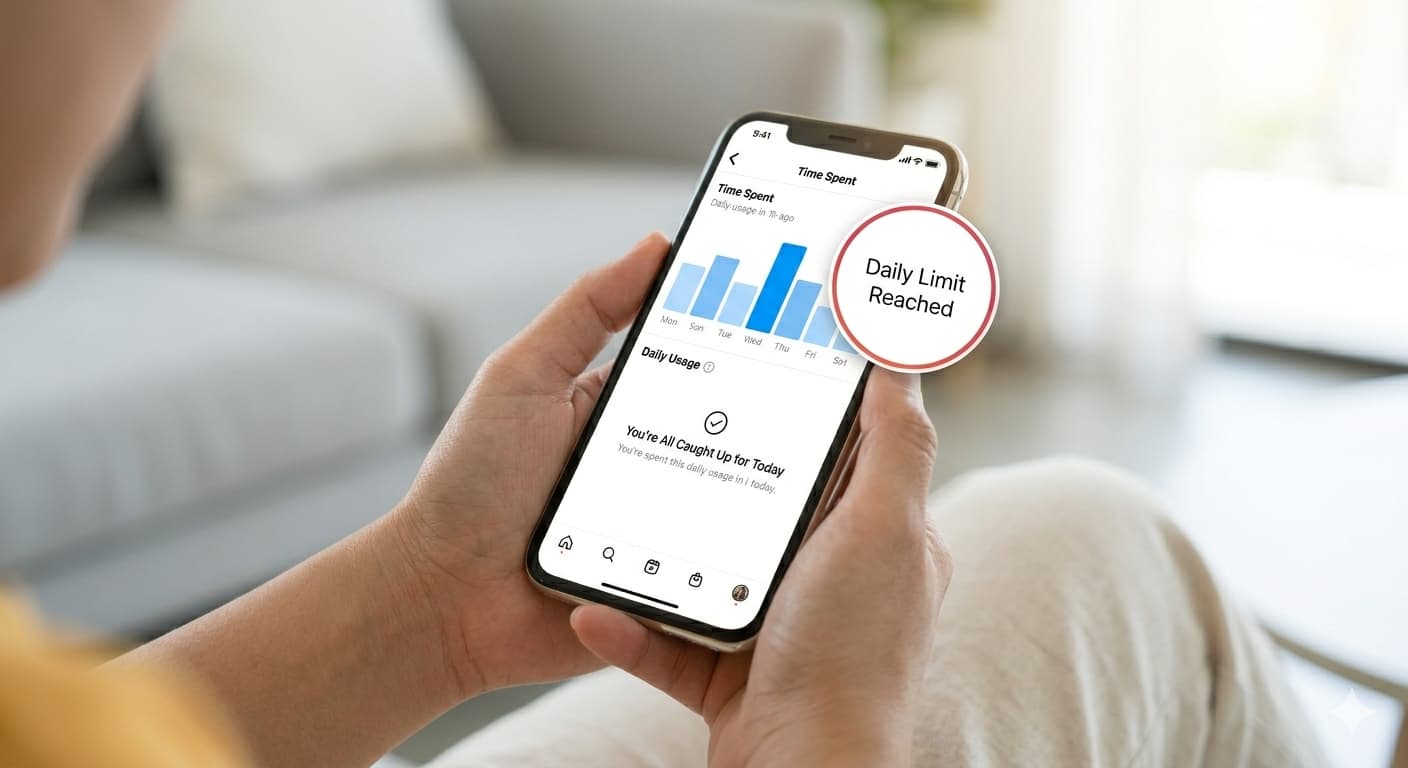
You can also set a Daily Time Limit:
- Settings → Your Activity → Time Spent → Set Daily Reminder
- Instagram will notify you when you hit your limit
6. Hide Your Story From Specific People
Post a Story but want to hide it from certain people like your boss, parents, or an ex? You can do this without blocking them.
How to hide your Story:
- Go to Settings → Privacy → Story
- Tap Hide Story From
- Add the people you want to hide it from
They remain your followers and can still see your posts just not your Stories.
7. Filter Comment Words You Don’t Want to See
Tired of spam comments or offensive words? Instagram lets you automatically hide comments containing specific words.
How to set it up:
- Settings → Privacy → Hidden Words
- Toggle on Hide Comments and Hide DM Requests
- Tap Manage Custom Words → add specific words you want to filter
Any comment containing those words is automatically hidden from your posts.
8. See Your Full Instagram Activity History
Instagram keeps a detailed log of everything you do every like, comment, follow, search, and video you watch.
How to view:
- Go to Settings → Your Activity
- Here you can see:
- Interactions all your likes, comments, follows
- Time Spent how long you use Instagram each day
- Content Seen videos and posts you watched
You can also delete your search history here go to Your Activity → Searches → Clear All.
9. Create a Second Instagram Account (Same App)
You can run multiple Instagram accounts from the same app no need to log out.
How to add a second account:
- Go to your Profile → three lines (☰)
- Tap your username at the top
- Tap Add Account → Create New Account or Log in to existing
Switch between accounts by tapping your profile photo and selecting the account you want.
10. Use Instagram Without a Phone Number
Many people do not know you can create an Instagram account using only an email address no phone number required.
How to sign up with email only:
- On the sign-up screen, tap Sign up with email address
- Enter your email instead of phone number
- Complete the rest of the setup normally
11. Emoji Reactions in DMs
In Instagram DMs, you can react to any message with any emoji not just the default ones.
How to use custom emoji reactions:
- Long press on any message in DMs
- Tap the + button on the emoji panel
- Choose any emoji from the full keyboard
12. Pin Posts to the Top of Your Profile
Want to highlight your best 3 posts at the top of your profile? You can pin up to 3 posts so they always appear first.
How to pin a post:
- Go to the post on your profile
- Tap the three dots (…)
- Tap Pin to Your Profile
Pinned posts always appear first regardless of when they were published. Great for showing your best content to new visitors.
13. Schedule Posts and Reels in Advance
You can schedule your Instagram posts and Reels up to 75 days in advance directly inside the Instagram app.
How to schedule:
- Create your post or Reel as normal
- On the final sharing screen, tap Advanced Settings
- Toggle on Schedule This Post
- Set the date and time
- Tap Schedule
Your post will automatically publish at the scheduled time no third-party app needed.
14. Add Links to Stories (All Accounts)
Previously only accounts with 10,000+ followers could add links to Stories. Now everyone can.
How to add a link:
- Create a Story
- Tap the Sticker icon
- Tap Link
- Paste any URL
- Place the sticker anywhere on your Story
Anyone who taps it goes directly to your link. Use it to link to your blog posts, products, or any website.
15. Turn Off Read Receipts in DMs
Just like WhatsApp, you can stop Instagram from showing others that you have read their DM.
How to turn off:
- Go to Settings → Messages and Story Replies
- Toggle off Show Read Receipts
Now you can read DMs without the sender knowing you have seen their message.
Quick Summary All 15 Features
| Feature | What It Does |
|---|---|
| Close Friends Stories | Post secretly to selected people |
| See post saves | Check who saved your content |
| Restrict without blocking | Silent control over toxic users |
| Download your data | Save all your Instagram content |
| Turn off suggested posts | Reduce addictive scrolling |
| Hide Story from people | Post without certain people seeing |
| Filter comment words | Auto-hide offensive comments |
| Activity history | See all your Instagram actions |
| Multiple accounts | Run 2+ accounts in one app |
| Sign up without phone | Email-only account creation |
| Custom emoji reactions | Any emoji in DM reactions |
| Pin posts | Keep best content at top of profile |
| Schedule posts | Auto-publish at a set time |
| Story links | Add links for all accounts |
| Turn off DM read receipts | Read without being seen |
Final Thoughts
Instagram is packed with features that most users never explore. Start with the privacy features restrict unwanted accounts, hide your Story from specific people, and turn off read receipts.
Then use the growth features pin your best posts, schedule content in advance, and add links to your Stories.
Similar Posts
Best AI Side Hustles: Real Ways to Make Extra Money with AI Tools
Every “AI side hustle” article promises the same thing: quit your job, make six figures, do…
8 Best AI Apps for Android and iPhone You Should Try Today
AI is no longer just for computers and big companies. In 2026, some of the most…
Best AI Apps for Phone Productivity: Do More in Less Time
Your phone is with you every hour of the day. For most people, it is split…
How to Create AI Images for Social Media: The Complete Step-by-Step Guide
Scroll through Instagram, LinkedIn, or Pinterest right now.A growing number of the most eye-catching posts the…
Best AI Design Tools for Content Creators
A few years ago, content creators had two options for design work. Spend hours learning Photoshop…
20 Tips to Take Your Android Phone to the Next Level (Most People Don’t Know These)
16. Use NFC for Instant Sharing If your phone has NFC (most modern phones do), you…