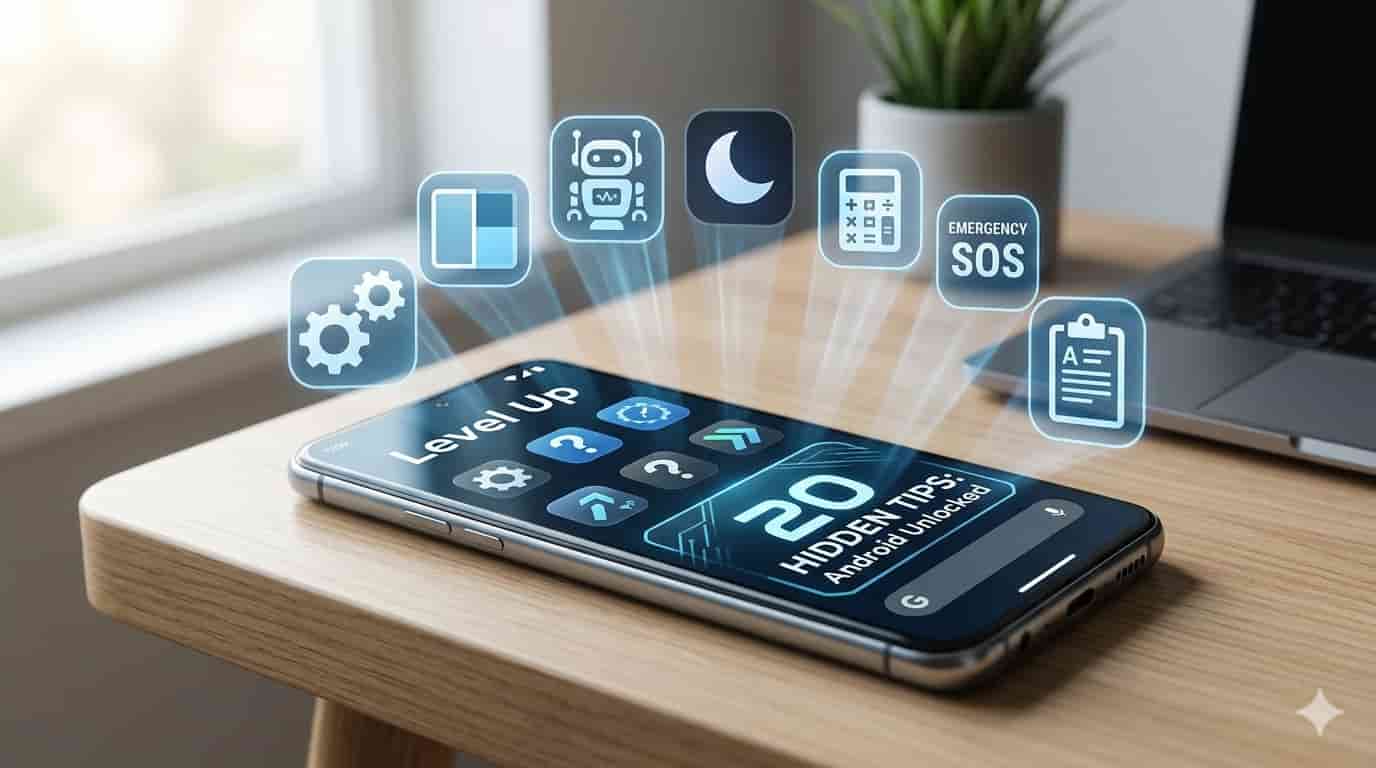
20 Tips to Take Your Android Phone to the Next Level (Most People Don’t Know These)
13. Emergency SOS (Could Save Your Life)
Android has a hidden emergency feature that automatically calls emergency services and sends your location to your emergency contacts.
How to set it up:
- Settings → Safety and Emergency → Emergency SOS
- Enable it → add emergency contacts
- Trigger: press the Power button 5 times rapidly
In an emergency, this sends your GPS location and calls for help automatically.
14. Use Your Volume Buttons as Camera Shutter
Stop stretching your thumb to tap the camera button. Use the volume buttons instead for sharper photos.
How to enable:
- Open Camera app → Settings
- Find Volume Key Function or Shutter Button
- Set to Take Photo or Shoot Video
You can also hold Volume Down to take burst photos great for action shots.
15. Clipboard History (Never Lose Copied Text)
Android keeps a history of everything you recently copied text, links, images. Access it any time.
How to use:
- Open any text field → tap and hold → tap Clipboard icon
- See everything you recently copied tap any item to paste it
Never lose copied text again even if you copied something else after it.

16. Use NFC for Instant Sharing
If your phone has NFC (most modern phones do), you can share files, contacts, and links by tapping two phones together.
How to enable:
- Settings → Connections → NFC → toggle ON
- Enable Android Beam or Tap to Share
- Open the content you want to share → bring phones back-to-back → tap
17. Smart Lock Keep Phone Unlocked at Home
Stop typing your PIN every time you pick up your phone at home. Smart Lock keeps your phone unlocked when connected to trusted WiFi or in a trusted location.
How to set up:
- Settings → Biometrics and Security → Smart Lock
- Add Trusted Places (your home location)
- Add Trusted Devices (your home WiFi or car Bluetooth)
Your phone stays unlocked while connected locks again when you leave.
18. Use Google Lens for Everything
Google Lens can read text from photos, translate signs, identify plants and animals, find products online, scan QR codes, and much more.
How to access:
- Long press the Home button → tap Lens icon
- Or open Google Photos → select any photo → tap Lens
- Or in Google Search → tap the camera icon
Point it at anything a book, a sign, a plant, a product and it tells you everything about it.
19. Notification History (See Deleted Notifications)
Accidentally swiped away an important notification? Android keeps a notification history.
How to access:
- Long press on your Home Screen → Widgets
- Find and add the Settings shortcut widget
- Or go to Settings → Notifications → Notification History → Enable
- See all recent notifications that were dismissed
20. Set Custom Vibration Patterns for Contacts
Give specific contacts a unique vibration pattern so you know who is calling or messaging even without looking at your phone.
How to set:
- Open Contacts → select a contact → Edit
- Tap Vibration Pattern or More Options
- Choose a custom pattern or create your own
Now you know it is an important contact just from the vibration no need to look.
Quick Summary All 20 Tips
| Tip | What It Does |
|---|---|
| Developer Options | Unlocks hidden settings |
| Split Screen | Two apps simultaneously |
| Phone as PC Mouse | Wireless control your computer |
| Screen Recorder | Record with audio |
| Google Assistant Routines | Automate daily tasks |
| One-Handed Mode | Easy single-hand use |
| Live Transcribe | Real-time speech to text |
| Scientific Calculator | Swipe to reveal |
| App Pinning | Lock to one app |
| Guest Mode | Share without privacy risk |
| WiFi Analyzer | Optimize your WiFi |
| Scheduled Dark Mode | Auto-switch at night |
| Emergency SOS | Automatic emergency call |
| Volume Button Camera | Sharper photos |
| Clipboard History | Never lose copied text |
| NFC Sharing | Tap to share files |
| Smart Lock | Stay unlocked at home |
| Google Lens | Identify anything with camera |
| Notification History | Recover dismissed notifications |
| Custom Vibration | Know caller by vibration |
Final Thoughts
Your Android phone is a powerful computer in your pocket most people use only 20% of what it can do. Go through this list and try 3–4 features today. The more you explore, the more useful your phone becomes.
You carry your phone every single day but are you actually using it to its full potential?Most people use only the basic features of their Android phone. But hidden deep inside settings and features most users never open are tools that can make your phone faster, smarter, safer, and far more useful.
In this post, I am sharing 20 tips to take your Android phone to the next level things that will genuinely change how you use your phone every day.
1. Enable Developer Options (Unlocks Hidden Settings)
Developer Options is a hidden menu inside Android with powerful settings that are turned off by default.
How to unlock it:
- Settings → About Phone → Software Information
- Tap Build Number exactly 7 times
- Enter your PIN if asked
- “You are now a developer!” appears
Now go to Settings → Developer Options a whole new world of settings is available.
2. Use Split Screen for Two Apps at Once
Run two apps side by side watch YouTube while chatting on WhatsApp, or browse while taking notes.
How to use split screen:
- Open the first app
- Tap the Recent Apps button (square icon)
- Tap the app icon at the top → select Split Screen
- Open the second app from Recent Apps or Home Screen
Both apps run simultaneously on screen.
3. Use Your Phone as a PC Mouse (via WiFi)
Turn your Android phone into a wireless mouse and keyboard for your laptop or PC no Bluetooth adapter needed.
How to do it:
- Install Remote Mouse app (free) on your phone
- Install the Remote Mouse server on your PC from remotemouse.net
- Connect both to the same WiFi
- Open the app your phone now controls your PC
4. Screen Recorder With Internal Audio
Android has a built-in screen recorder but did you know you can also record the internal audio (sounds from the app) not just your microphone?
How to use:
- Pull down notification bar → find Screen Recorder
- Tap settings → set Audio Source to System + Microphone or Media
- Start recording captures everything on screen including game sounds, music, and app audio
Perfect for recording gameplay or creating tutorials.
5. Use Google Assistant Routines (Automate Daily Tasks)
Set up routines that trigger multiple actions with a single command or at a set time.
Example routine:
- Say “Good morning” → Google Assistant turns on WiFi, reads your notifications, sets brightness to full, and opens your news app all automatically
How to set up:
- Open Google Assistant → Settings → Routines
- Tap + to create a new routine
- Set a trigger (phrase, time, or action) and add actions
6. One-Handed Mode (Easy to Use With One Hand)
Large phones are hard to use with one hand. One-Handed Mode shrinks the screen down.
Samsung:
- Settings → Advanced Features → One-Handed Mode
- Enable → swipe down on the bottom edge to activate
Stock Android:
- Settings → System → Gestures → One-Handed Mode
- Enable → swipe down from the bottom edge
7. Live Transcribe Real-Time Speech to Text
Your phone can transcribe everything being said around you in real time, on screen, for free.
How to use:
- Search for Live Transcribe in Play Store → install (made by Google)
- Open the app → it instantly shows everything being said as text on screen
- Available in multiple languages
Great for: meetings, lectures, hard of hearing users, or noisy environments.
8. Use the Calculator’s Hidden Scientific Mode
The stock Android calculator has a full scientific mode hidden behind a simple swipe.
How to access:
- Open your Calculator app
- Rotate your phone to landscape mode (sideways)
- The scientific calculator appears automatically
Trigonometry, logarithms, exponents all hidden behind a simple rotation.
9. Pin Apps on Screen (Let Others Use Your Phone Safely)
If you hand your phone to someone to show them a photo or app, you can lock the screen to that single app they cannot leave it or access anything else.
How to pin:
- Go to Settings → Biometrics and Security → App Pinning → enable
- Open Recent Apps → swipe up on the app → tap the Pin icon
- To unpin: hold Back + Recent Apps together
10. Use Guest Mode (Share Your Phone Without Privacy Risk)
Let someone else use your phone without giving them access to your apps, messages, or personal data.
How to enable Guest Mode:
- Pull down the notification bar
- Tap your profile icon (top right) or go to Settings → Users and Accounts
- Tap Add User → Guest
- Switch to Guest mode
Guest users get a fresh phone experience with none of your personal apps or data.
11. Use Phone as WiFi Analyzer
Is your WiFi slow? Your phone can analyze the WiFi signals around you and tell you the best channel to use.
How to do it:
- Install WiFi Analyzer (free from Play Store)
- Open it → it shows all WiFi networks nearby and their signal strength
- Check which channel is least congested and set your router to that channel
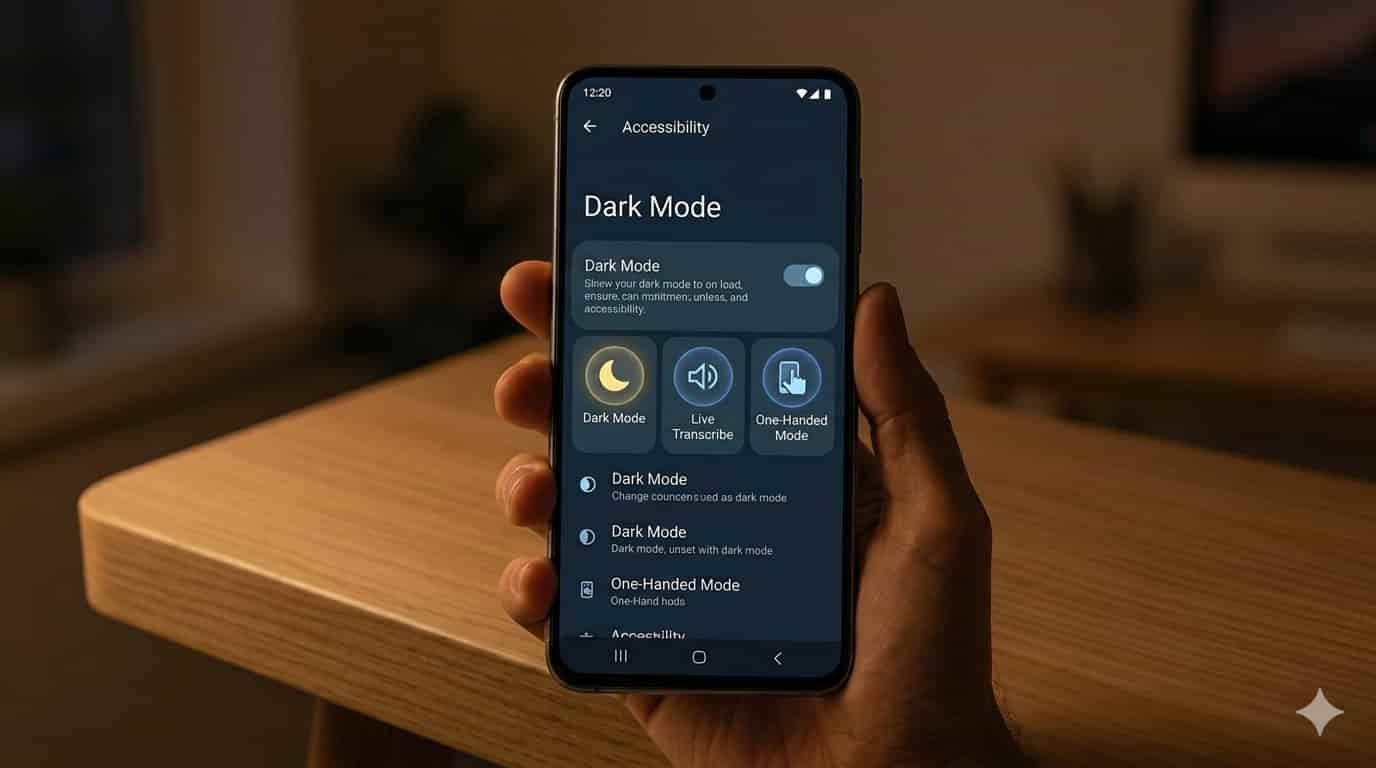
12. Scheduled Dark Mode
Instead of manually switching dark mode on at night, schedule it to turn on automatically.
How to schedule:
- Settings → Display → Dark Mode → Dark Mode Settings
- Enable Turn On as Scheduled
- Set Sunrise and Sunset or custom times
Dark mode at night = better sleep, less eye strain, and longer battery.
13. Emergency SOS (Could Save Your Life)
Android has a hidden emergency feature that automatically calls emergency services and sends your location to your emergency contacts.
How to set it up:
- Settings → Safety and Emergency → Emergency SOS
- Enable it → add emergency contacts
- Trigger: press the Power button 5 times rapidly
In an emergency, this sends your GPS location and calls for help automatically.
14. Use Your Volume Buttons as Camera Shutter
Stop stretching your thumb to tap the camera button. Use the volume buttons instead for sharper photos.
How to enable:
- Open Camera app → Settings
- Find Volume Key Function or Shutter Button
- Set to Take Photo or Shoot Video
You can also hold Volume Down to take burst photos great for action shots.
15. Clipboard History (Never Lose Copied Text)
Android keeps a history of everything you recently copied text, links, images. Access it any time.
How to use:
- Open any text field → tap and hold → tap Clipboard icon
- See everything you recently copied tap any item to paste it
Never lose copied text again even if you copied something else after it.
16. Use NFC for Instant Sharing
If your phone has NFC (most modern phones do), you can share files, contacts, and links by tapping two phones together.
How to enable:
- Settings → Connections → NFC → toggle ON
- Enable Android Beam or Tap to Share
- Open the content you want to share → bring phones back-to-back → tap
17. Smart Lock Keep Phone Unlocked at Home
Stop typing your PIN every time you pick up your phone at home. Smart Lock keeps your phone unlocked when connected to trusted WiFi or in a trusted location.
How to set up:
- Settings → Biometrics and Security → Smart Lock
- Add Trusted Places (your home location)
- Add Trusted Devices (your home WiFi or car Bluetooth)
Your phone stays unlocked while connected locks again when you leave.
18. Use Google Lens for Everything
Google Lens can read text from photos, translate signs, identify plants and animals, find products online, scan QR codes, and much more.
How to access:
- Long press the Home button → tap Lens icon
- Or open Google Photos → select any photo → tap Lens
- Or in Google Search → tap the camera icon
Point it at anything a book, a sign, a plant, a product and it tells you everything about it.
19. Notification History (See Deleted Notifications)
Accidentally swiped away an important notification? Android keeps a notification history.
How to access:
- Long press on your Home Screen → Widgets
- Find and add the Settings shortcut widget
- Or go to Settings → Notifications → Notification History → Enable
- See all recent notifications that were dismissed
20. Set Custom Vibration Patterns for Contacts
Give specific contacts a unique vibration pattern so you know who is calling or messaging even without looking at your phone.
How to set:
- Open Contacts → select a contact → Edit
- Tap Vibration Pattern or More Options
- Choose a custom pattern or create your own
Now you know it is an important contact just from the vibration no need to look.
Quick Summary All 20 Tips
| Tip | What It Does |
|---|---|
| Developer Options | Unlocks hidden settings |
| Split Screen | Two apps simultaneously |
| Phone as PC Mouse | Wireless control your computer |
| Screen Recorder | Record with audio |
| Google Assistant Routines | Automate daily tasks |
| One-Handed Mode | Easy single-hand use |
| Live Transcribe | Real-time speech to text |
| Scientific Calculator | Swipe to reveal |
| App Pinning | Lock to one app |
| Guest Mode | Share without privacy risk |
| WiFi Analyzer | Optimize your WiFi |
| Scheduled Dark Mode | Auto-switch at night |
| Emergency SOS | Automatic emergency call |
| Volume Button Camera | Sharper photos |
| Clipboard History | Never lose copied text |
| NFC Sharing | Tap to share files |
| Smart Lock | Stay unlocked at home |
| Google Lens | Identify anything with camera |
| Notification History | Recover dismissed notifications |
| Custom Vibration | Know caller by vibration |
Final Thoughts
Your Android phone is a powerful computer in your pocket most people use only 20% of what it can do. Go through this list and try 3–4 features today. The more you explore, the more useful your phone becomes.
Similar Posts
15 Hidden Instagram Features Everyone Should Know (Secret Tips Inside)
Instagram has over 2 billion active users but most of them are missing dozens of hidden…
10 Secret ChatGPT Codes and Directives That 99% of Users Don’t Know (2026 Guide)
Most people use ChatGPT with single-line, open-ended questions like “Write a blog post about marketing” or…
Best AI Apps for Phone Productivity: Do More in Less Time
Your phone is with you every hour of the day. For most people, it is split…
How to Create AI Images for Social Media: The Complete Step-by-Step Guide
Scroll through Instagram, LinkedIn, or Pinterest right now.A growing number of the most eye-catching posts the…
AI Chatbots for E-Commerce: The Complete Practical Guide (How to Set One Up Today)
Imagine having a sales assistant who works 24 hours a day, 7 days a week, never…
8 Best AI Apps for Android and iPhone You Should Try Today
AI is no longer just for computers and big companies. In 2026, some of the most…