How to Set Up AI Automation for Your Business: The Complete Beginner’s Guide
Every business owner has the same hidden cost eating into their time: repetitive tasks.Replying to the same customer questions. Manually entering data from one system into another. Following up on invoices. Scheduling social media posts. Sorting through emails to find what actually matters. None of these tasks require creativity or judgement. They require consistency. And that is exactly what AI automation is built for.
A few years ago, automating these workflows meant hiring a developer or learning to code. Today, it means connecting a few tools together with AI doing the thinking in between and you can set most of it up yourself in an afternoon.
This guide will show you exactly how to identify what to automate, which tools to use, and how to build your first AI-powered workflow step by step.
What AI Automation Actually Means for a Business
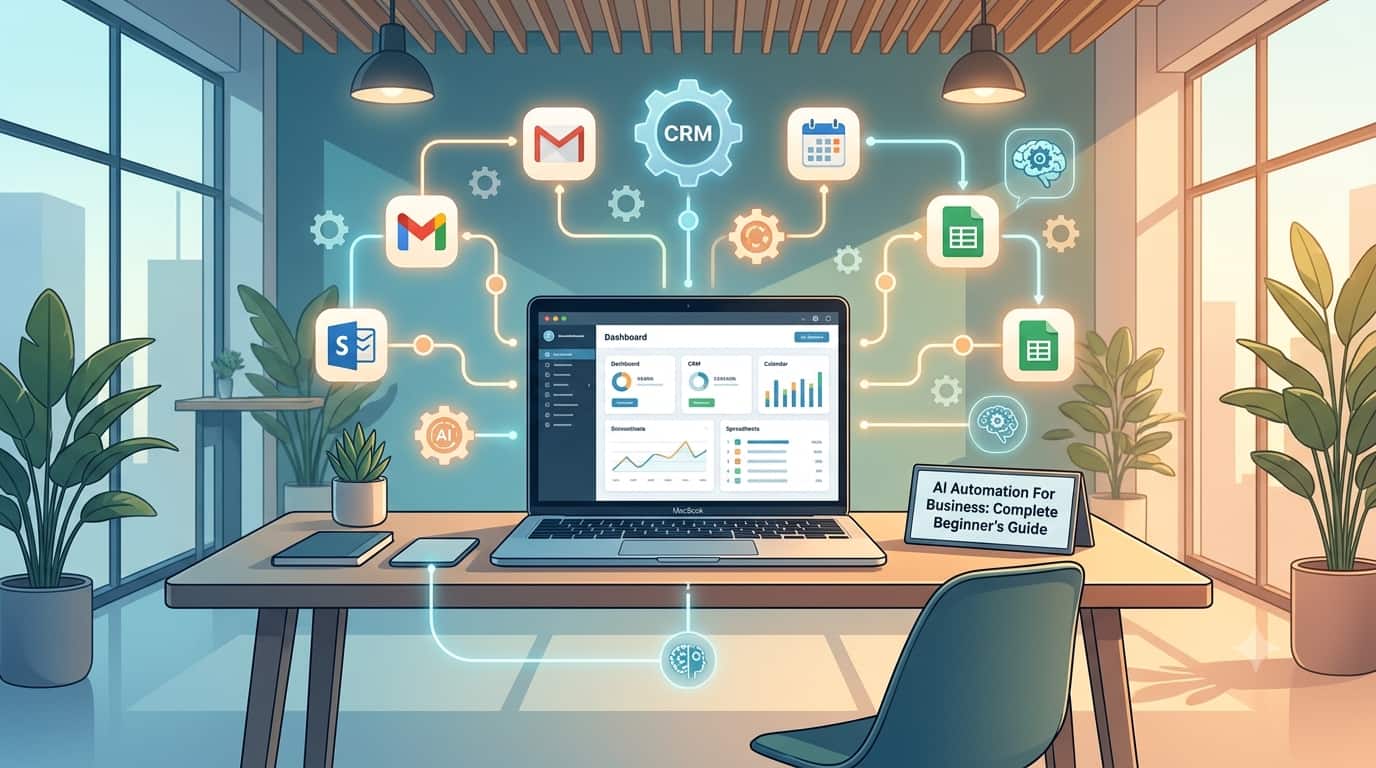
Before picking any tool, it helps to understand the three layers of business automation working together:
- Trigger something happens (a new email arrives, a form is submitted, a sale is made)
- AI processing the AI reads, understands, categorises, or generates content based on that trigger
- Action something happens automatically as a result (a reply is sent, a record is created, a task is assigned)
This is different from old-style automation, which could only follow rigid rules. AI automation can read unstructured information an email, a customer message, a document and make a judgement call about what to do with it.
Examples of what this looks like in practice:
- A customer emails a question → AI reads it, identifies the topic, drafts a reply → reply is sent or queued for approval
- A new lead fills out a form → AI scores how likely they are to buy → high-value leads are flagged for your sales team immediately
- An invoice is overdue → AI drafts a polite reminder personalised to that client → email is sent automatically
- A new product photo is uploaded → AI removes the background, resizes it for every platform → images are posted to your store and social channels
💡 The goal of AI automation is not to remove humans from the business. It is to remove humans from the parts of the business that do not need a human.
The Best AI Automation Tools for Business
Different tools suit different needs. Here is how they compare:
| Tool | Best For |
|---|---|
| Zapier (zapier.com) | Easiest starting point connects 6,000+ apps with AI steps built in, no coding required |
| Make (make.com) | More powerful visual workflows better for complex, multi-step automations |
| n8n (n8n.io) | Best for technical users who want full control open source, self-hostable |
| ChatGPT / Claude (via API) | The “brain” behind many automations drafts content, analyses text, makes decisions |
| HubSpot AI (hubspot.com) | Best if your automation is centered on sales and marketing built-in AI CRM features |
| Notion AI (notion.so) | Best for automating internal documentation, meeting notes, and project tracking |
| Gumloop (gumloop.com) | No-code AI automation builder designed specifically around AI-driven workflows |
💡 Recommendation for beginners: Start with Zapier. It has the largest library of pre-built templates, the gentlest learning curve, and a free plan that is enough to test your first few automations.
Step-by-Step: Setting Up Your First AI Automation
Step 1 Identify What to Automate First
Do not try to automate everything at once. Pick one repetitive task that meets these criteria:
- You do it more than a few times per week
- It follows a recognisable pattern (even if not 100% identical every time)
- A mistake would be annoying, not catastrophic good for your first automation while you build trust in the system
Common first automations for small businesses:
- Auto-replying to common customer email questions
- Sorting and tagging incoming leads by type or urgency
- Summarising customer feedback or reviews into key themes
- Drafting social media captions from a list of topics
- Generating meeting summaries and action items from call transcripts
Step 2 Map the Workflow Before Building It
Before opening any tool, write out the workflow on paper or in a simple document. This avoids the most common mistake: building something complicated when something simple would work.
Use this format:
WHEN [trigger happens] → AI SHOULD [process/decide] → THEN [action happens]
Example:
WHEN a new email arrives in support@yourstore.com → AI SHOULD read it and identify if it is about shipping, returns, or product questions → THEN it drafts a reply using your FAQ and sends it to your inbox for one-click approval
Writing this out first makes the actual setup in your automation tool much faster and prevents scope creep.
Step 3 Build the Automation in Zapier
Using the example above, here is how it looks in practice:
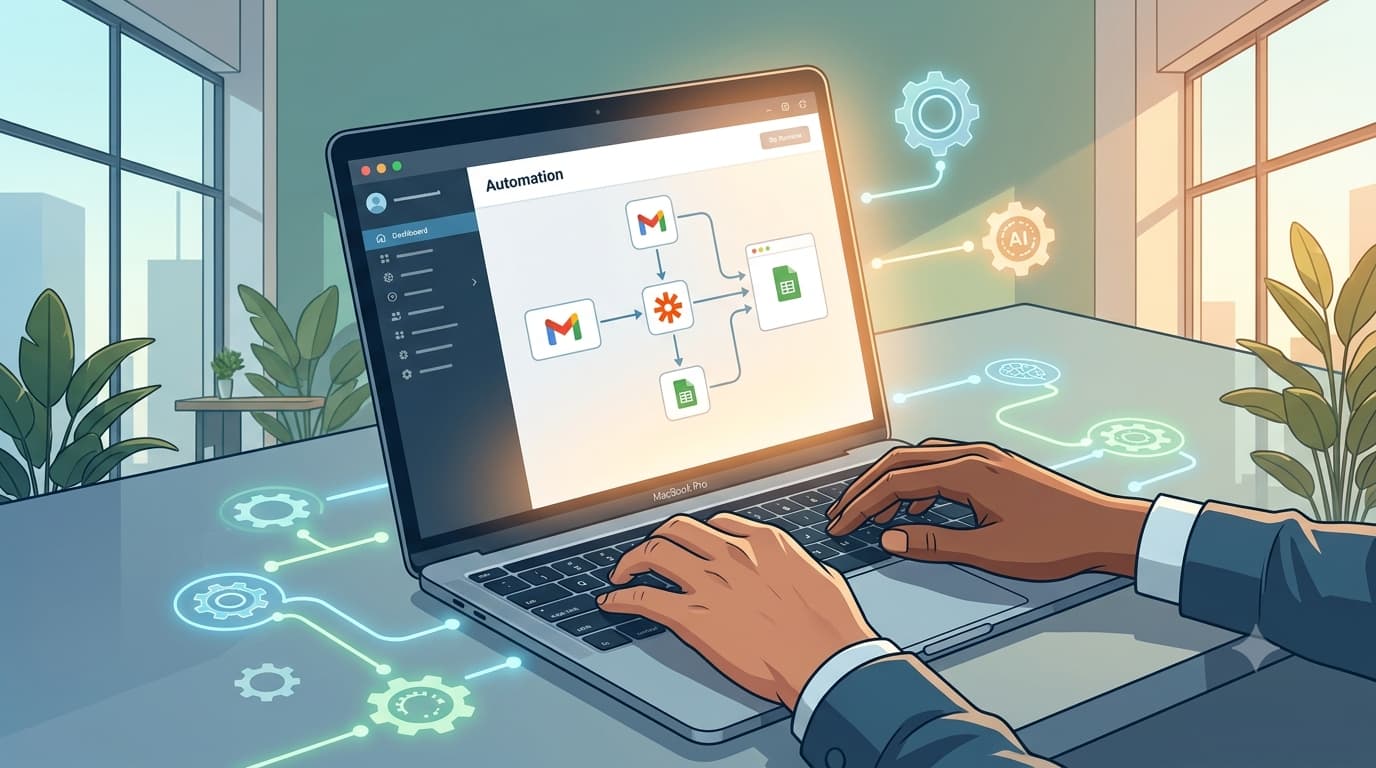
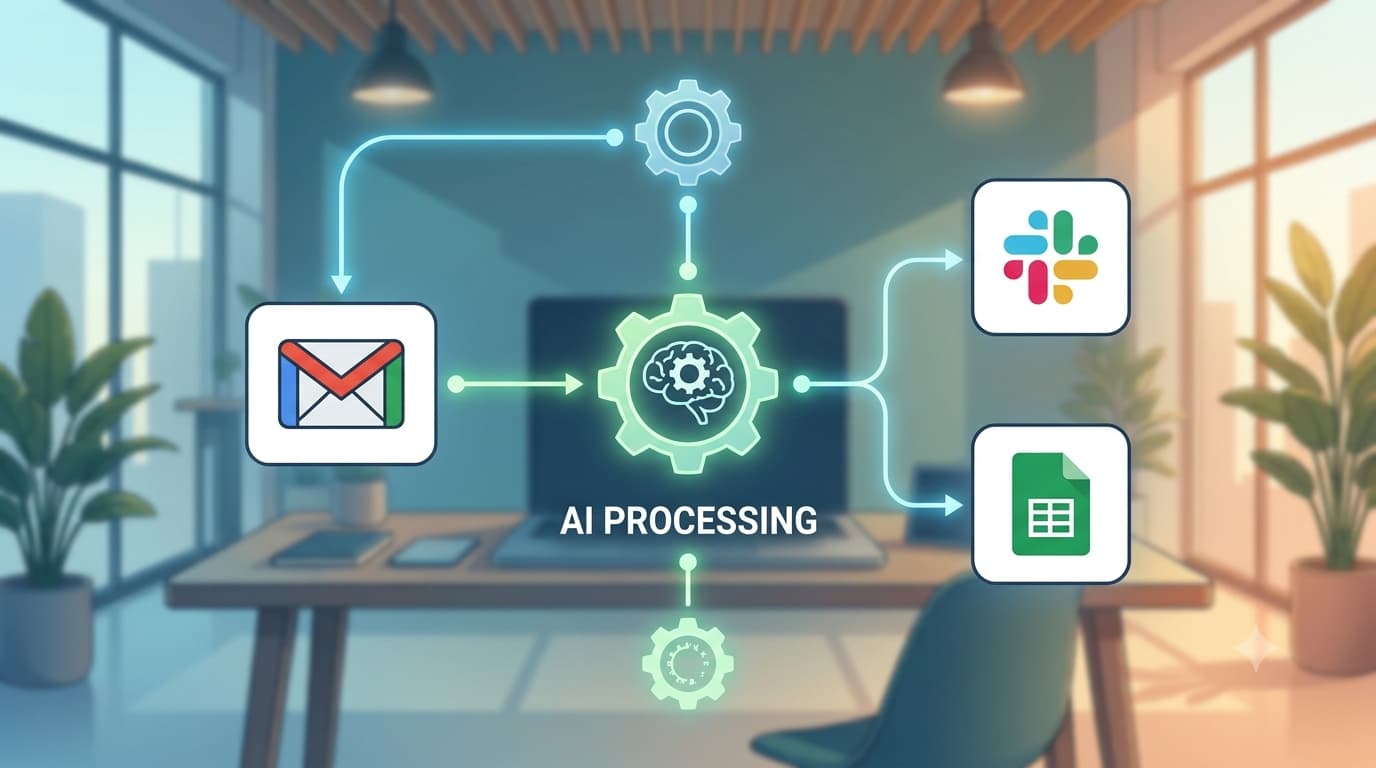
- Create a new Zap in Zapier and choose your trigger app Gmail, in this case
- Set the trigger to “New Email” and filter to only emails sent to your support address
- Add an AI step choose the “AI by Zapier” action, or connect ChatGPT/Claude directly
- Write your AI instruction (prompt) inside the step:
“Read this customer email. Identify if it is about shipping, returns, or a product question. Draft a friendly, helpful reply using the following FAQ information: [paste your FAQ]. Keep the tone warm and professional.”
- Add an output action send the AI’s draft to a Slack channel, a Google Sheet, or directly into a Gmail draft for your review
- Test the Zap with a few real examples before turning it on
- Turn it live and monitor the first week of results closely
Step 4 Add a Human Checkpoint Before Going Fully Automatic
For any automation that touches customers, money, or anything sensitive, do not let AI act completely unsupervised at first.
Safer rollout pattern:
- Week 1-2: AI drafts the action, a human reviews and approves before it goes out
- Week 3-4: AI acts automatically for low-risk cases, flags anything uncertain for review
- Month 2 onward: AI handles routine cases fully automatically, exceptions still routed to a human
This staged approach builds trust in the system gradually and catches mistakes before they reach a customer.
Step 5 Track Results and Refine
An automation is never really “done” it improves over time as you refine the AI’s instructions based on real results.
Track these basics weekly:
| Metric | Why It Matters |
|---|---|
| Time saved per week | The core reason you built this measure it to know if it is working |
| Error or correction rate | How often you had to fix or override what the AI did |
| Customer or team feedback | Are the AI-generated responses landing well, or do they feel robotic? |
| Volume handled | How many cases ran through the automation shows you the real-world scale |
If error rates are high, the fix is almost always in the AI prompt give it more context, clearer instructions, or better examples of what a good output looks like.
Real Business Automation Examples by Department
| Department | Automation Example |
|---|---|
| Customer Support | AI drafts replies to common questions, escalates complex tickets to humans automatically |
| Sales | AI scores and prioritises incoming leads, drafts personalised follow-up emails |
| Marketing | AI generates first drafts of social posts, summarises competitor content, tags content by topic |
| Finance | AI drafts overdue invoice reminders, categorises expenses, flags unusual transactions |
| HR | AI screens resumes against job criteria, drafts interview scheduling emails |
| Operations | AI summarises daily reports, flags inventory issues, routes support tickets to the right team |
Common Mistakes When Automating with AI
- Automating a broken process automation makes a good process faster, but it also makes a bad process fail faster. Fix the process first.
- No human checkpoint for sensitive actions never let AI send financial communications or handle complaints fully unsupervised from day one.
- Vague AI instructions “write a good reply” produces inconsistent results. Specific instructions with examples produce reliable ones.
- Trying to automate everything in week one start with one workflow, prove it works, then expand.
- Forgetting to monitor after launch automations can quietly break when a connected app changes its format. Check in regularly.
The Bottom Line
AI automation is no longer something only large companies with dedicated tech teams can use. The tools have matured to the point where any small business owner can connect a few apps, write a clear instruction, and remove hours of repetitive work from their week.
The businesses that win in the next few years will not necessarily be the ones with the best product. They will be the ones who freed up the most time by automating the routine and reinvested that time into the things only a human can do: building relationships, having creative ideas, and making strategic decisions.
Start with one workflow. Map it out. Build it in an afternoon. Watch it for a few weeks. Then build the next one.