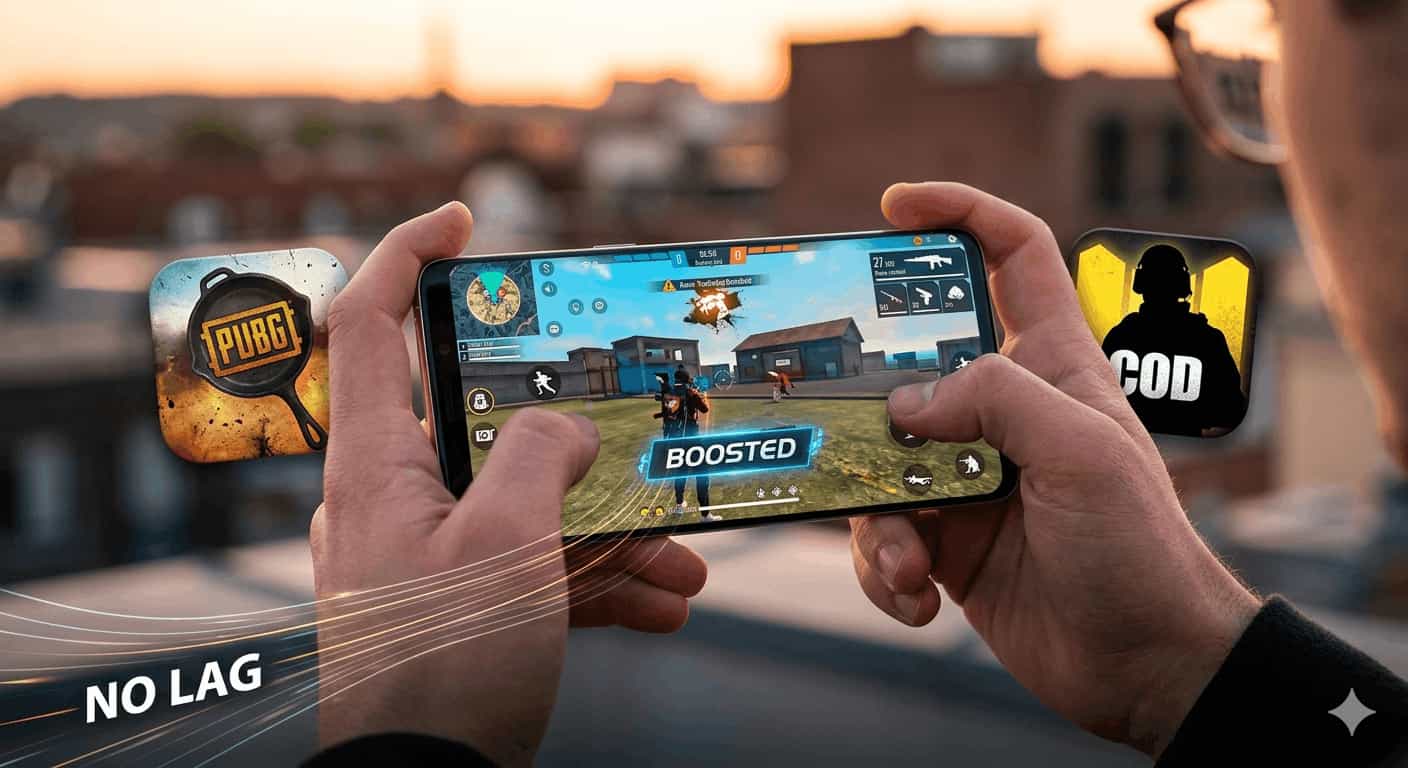
Best Android Settings for Gaming — Fix Lag in Free Fire, PUBG & Call of Duty
You are in the middle of a PUBG match, a Free Fire drop, or a Call of Duty gunfight — and then it happens. Lag. Frame drops. Stuttering. Game over.Losing because of lag on your phone is incredibly frustrating — especially when it is caused by wrong settings, not your skill.
The good news? Most mobile gaming lag is completely fixable — without buying a new phone. In this guide, I will walk you through every setting you need to change on your Android phone to get smoother, faster, and better gaming performance.
.
Part 1 — Android System Settings (Do These First)
These settings affect your entire phone performance during gaming.
Setting 1 — Enable Game Mode / Game Booster
Most Android phones have a built-in Game Mode or Game Booster that optimizes performance automatically when you launch a game.
Samsung phones:
- Settings → Advanced Features → Game Booster → Game Booster Settings
- Enable Auto Run Game Booster for all your games
Xiaomi / MIUI phones:
- Settings → Special Features → Game Turbo
- Add your games and enable enhanced performance mode
Realme / OPPO phones:
- Settings → Special Features → Game Space
- Enable and add your games
What Game Mode does:
- Blocks notifications during games
- Prevents accidental touches on edges
- Prioritizes processor power to the game
- Reduces background app activity
Setting 2 — Enable High Performance / Maximum Performance Mode
Your phone’s processor runs at lower speed by default to save battery. Switch it to maximum performance for gaming.
How to enable:
- Settings → Battery → Power Mode (or Battery Management)
- Select High Performance or Maximum Performance
⚠️ Switch back to Balanced mode when not gaming — High Performance drains battery faster.
Setting 3 — Turn Off Animations (Feels Faster)
Animations waste processing power. Turning them off gives your processor more power for the game.
How to do it:
- Settings → About Phone → tap Build Number 7 times (enables Developer Options)
- Settings → Developer Options
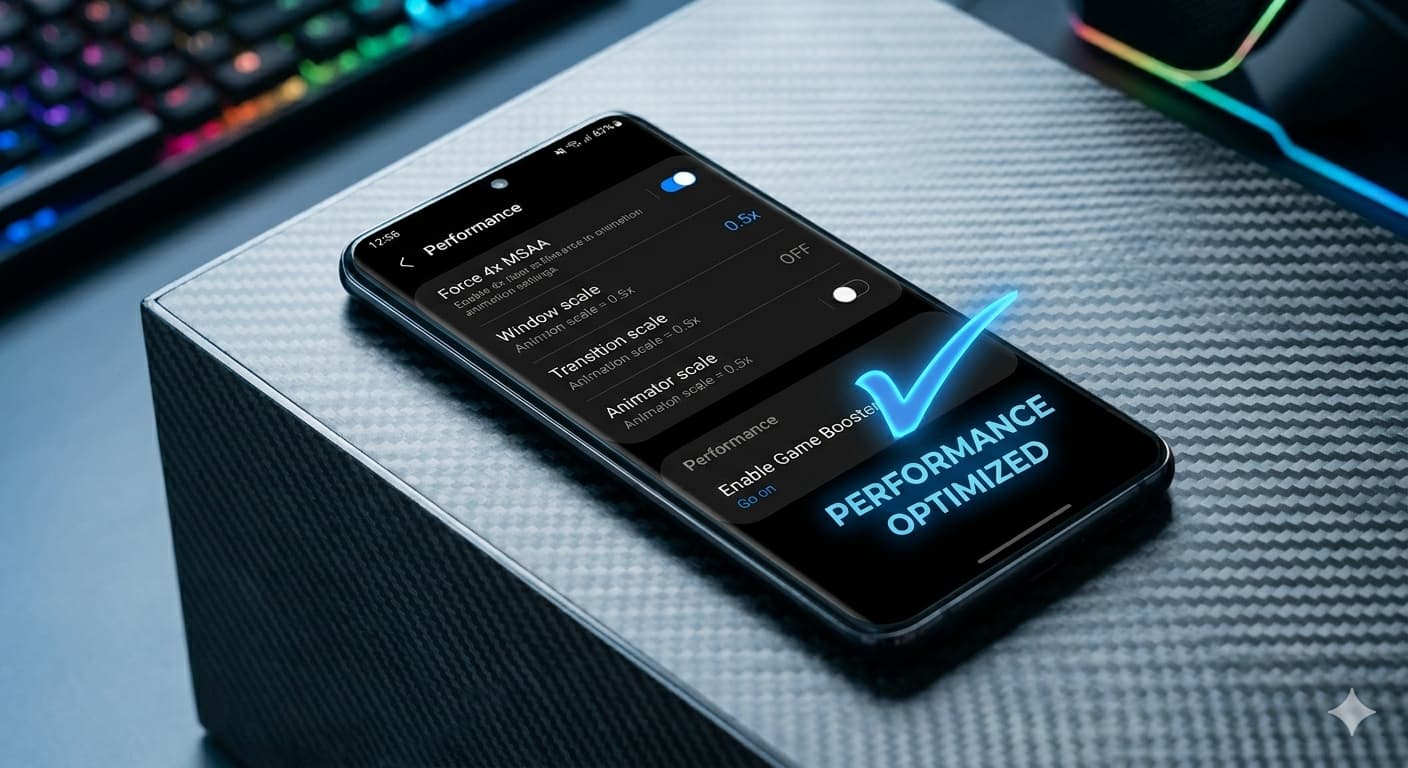
- Set all three to Off or 0.5x:
- Window Animation Scale → Off
- Transition Animation Scale → Off
- Animator Duration Scale → Off
Setting 4 — Enable Force 4x MSAA (Better Graphics Performance)
This is a Developer Option that forces better anti-aliasing in OpenGL games — smoother edges and better visual performance.
How to enable:
- Settings → Developer Options
- Find Force 4x MSAA
- Toggle it ON
Note: This may use slightly more battery but significantly improves visual smoothness in games.
Setting 5 — Set to Maximum Refresh Rate
If your phone has a 90Hz or 120Hz screen, make sure it is actually running at that speed.
How to set:
- Settings → Display
- Look for Motion Smoothness or Screen Refresh Rate
- Set to 120Hz or the highest available option
Higher refresh rate = smoother, more responsive gameplay.
Part 2 — In-Game Settings for Free Fire, PUBG & COD
System settings alone are not enough. You also need to optimize settings inside each game.
Free Fire — Best Settings to Fix Lag
Graphics Settings:
- Graphics Quality → Smooth (not HD or Ultra — these cause lag on mid-range phones)
- Frame Rate → High 60fps (if your phone supports it) or Medium for weaker phones
- Shadows → Disable (big FPS boost)
- Auto-adjust Graphics → Disable (keeps settings consistent)
Other Free Fire Settings:
- Peeking & Firing → Enable (faster response)
- Gyroscope → Disable if you don’t use it (saves processing power)
- Network Mode → set to your fastest available option (4G/5G preferred)
If still lagging in Free Fire:
- Go to Settings → Graphics and drop to Smooth + Low temporarily
- Check your internet connection — lag in Free Fire is often server-side, not phone-side
- Clear Free Fire’s cache: Settings → Apps → Free Fire → Storage → Clear Cache
PUBG Mobile — Best Settings to Fix Lag
Graphics Settings:
- Graphics → Smooth or Balanced (not HD/Ultra)
- Frame Rate → High (60fps) — if your phone drops frames on High, use Medium
- Style → Classic
- Shadows → Disable
- Auto-adjust Graphics → Disable
Performance Settings in PUBG:
- Power Saving Mode → OFF
- Enable Colorblind Mode → Off (personal preference but helps visibility)
- Peek and Fire → Enable
Reduce PUBG Lag Specifically:
- In PUBG settings, go to Basic → Peak & Fire → enable
- Set Server to the closest one to your location (Pakistan players should use Asia server)
- Check Ping in the top right — should be below 80ms for smooth play
- If ping is above 150ms, the lag is internet related, not phone related
Call of Duty Mobile — Best Settings to Fix Lag
Graphics Settings:
- Graphics Quality → Low or Medium (not High/Very High on mid-range phones)
- Frame Rate → Max (60fps or 90fps depending on your phone)
- Shadows → Low
- Ragdoll → Low (less physics = less processing load)
- Anti-Aliasing → Low
Controls:
- Aim Response Curve → Dynamic (more responsive aim)
- Always Sprint → Enable (saves tapping)
Network in COD:
- COD Mobile is very sensitive to ping
- Play on WiFi whenever possible — mobile data adds 20–50ms extra ping
- Check your in-game ping in the top right corner
Part 3 — Network Settings (Fix Ping and Lag Spikes)
High ping is the most common cause of lag in online games — especially PUBG and Free Fire. It is a network issue, not a phone issue.
Fix high ping on Android:
Step 1 — Use WiFi instead of mobile data WiFi gives more stable and faster connection. Mobile data ping can spike suddenly during gameplay.
Step 2 — Move closer to your WiFi router Distance from the router increases ping. Play in the same room as your router if possible.
Step 3 — Use a Gaming DNS
- Settings → WiFi → long press your connected network → Modify Network
- Set DNS 1 to
8.8.8.8(Google DNS) - Set DNS 2 to
8.8.4.4 - Or use
1.1.1.1(Cloudflare DNS — fastest for gaming)
Step 4 — Enable WiFi 5GHz if available Most modern routers have both 2.4GHz and 5GHz bands. Connect to 5GHz — it is faster and less congested.
Part 4 — Reduce Phone Heating (Heating = FPS Drops)
When your phone overheats, it automatically slows down the processor to cool itself — causing FPS drops mid-game.
How to reduce heating:
- Remove your phone case while gaming — cases trap heat
- Do not charge while gaming — charging generates extra heat
- Play in a cool room or near a fan
- Take short breaks every 30–45 minutes
- Close all other apps before starting the game
- Keep your phone’s ventilation area clear (usually the back bottom)
Similar Posts
Use This App to Solve the Biggest Problem With Reminders
Pellentesque diam volutpat commodo sed egestas. Tellus elementum sagittis vitae et leo duis ut diam quam….
You Need to Update Your Windows PC Immediately
Pellentesque diam volutpat commodo sed egestas. Tellus elementum sagittis vitae et leo duis ut diam quam….
15 Hidden Facebook Features Everyone Should Know (Most People Have No Idea)
You use Facebook every day — but are you actually using it the right way? Facebook…
8 of the Best Read-It-Later Apps You Should Try
Pellentesque diam volutpat commodo sed egestas. Tellus elementum sagittis vitae et leo duis ut diam quam….
20 Tips to Take Your Android Phone to the Next Level (Most People Don’t Know These)
You carry your phone every single day — but are you actually using it to its…
15 Hidden Instagram Features Everyone Should Know (Secret Tips Inside)
Instagram has over 2 billion active users — but most of them are missing dozens of…