
How to Run Local AI on Your PC for Free in 2026 (Ollama + DeepSeek-R1 & Llama 3: Zero API Costs)
If you are paying $20 every single month for ChatGPT Plus, Claude Pro, or Gemini Advanced, you might be surprised to learn that your personal computer can already run state-of-the-art artificial intelligence models completely free of charge. No credit card, no recurring subscriptions, no API rate limits, and zero data tracking. Welcome to the world of local AI.
Thanks to open-weight models like DeepSeek-R1 and Meta’s Llama 3.3, alongside effortless runtime managers like Ollama, setting up your own private AI workstation now takes less than 10 minutes. Maybe you are a developer who wants an offline coding assistant, a freelance writer handling client files under an NDA, or a student working without a reliable internet connection. In each case, running AI locally keeps your data on your own computer and costs nothing per month.
In this hands-on guide, I will walk you through everything step by step: from checking your PC’s hardware specifications to installing Ollama, downloading your first reasoning models, and setting up a slick, ChatGPT-style graphical desktop interface.
Why Run AI Locally Instead of Cloud Services?
Before diving into the terminal commands, it is important to understand why thousands of developers, researchers, and privacy-conscious professionals are transitioning part of their daily workflow away from closed cloud platforms:
- 100% Privacy and Data Confidentiality: Cloud AI providers store your chat transcripts and often train subsequent model iterations on user inputs. When you run a model locally on your own machine, your prompts, client source code, and personal documents never leave your local hard drive.
- Zero Monthly Fees: Open-weights models distributed under permissive licenses (such as MIT or the Llama 3 Community License) are free forever. You incur zero token charges, regardless of whether you process 500 words or 500,000 words.
- Works Completely Offline: Once the model weights are downloaded to your disk, you do not need an active internet connection. You can draft proposals, analyze CSV data, and debug JavaScript on a plane, during a power outage, or in remote workspaces.
- No Artificial Censorship or Guardrail Lockouts: Local models do not suffer from sudden cloud downtime, server capacity throttles, or abrupt policy updates that break existing software integrations.
Hardware Requirements: Can Your PC Run Local AI?
One of the biggest misconceptions about local AI is that you need a multi-thousand-dollar data center GPU with 48GB of VRAM. While dedicated graphics processing units dramatically accelerate generation speed, modern quantized models run surprisingly fast on everyday laptops and desktops using CPU inference combined with unified system memory.
| RAM Tier | Recommended Models | Quantization | Expected Performance |
|---|---|---|---|
| 8 GB RAM | Llama 3.2 (3B), DeepSeek-R1 (1.5B, 7B) | Q4_K_M (Quantized) | Fast lightweight tasks, quick summaries, mobile laptop coding |
| 16 GB RAM | DeepSeek-R1 (8B), Llama 3.1 (8B), Mistral (7B) | Q4_K_M / Q8 | Sweet spot for everyday use: programming, drafting, logic reasoning |
| 32 GB RAM | DeepSeek-R1 (14B), Qwen 2.5 (14B/32B), Gemma 2 (27B) | Q4 / Q5 | Professional-grade coding, heavy complex reasoning, full-context review |
| 64 GB+ / Mac M-Series | DeepSeek-R1 (32B / 70B), Llama 3.3 (70B) | Q4_K_M | Near GPT intelligence tiers running entirely on local silicon |
Note for Apple Silicon Users: If you use an M1, M2, M3, or M4 Mac (MacBook, Mac mini, or Mac Studio), your unified memory architecture allows your GPU to directly access the entire system RAM pool. A 16GB or 36GB Mac is one of the most cost-efficient platforms for running 8B and 14B models at blazingly fast inference speeds (35+ tokens per second).
Step 1: Downloading & Installing Ollama
Historically, setting up local LLMs required compiling C++ libraries, managing complex Python virtual environments, and wrestling with CUDA driver dependencies. Ollama revolutionized this entire process by packaging the underlying llama.cpp runtime into a clean background service that manages model downloads, memory allocation, and CPU/GPU offloading automatically.

To install Ollama on your system:
- Navigate to the official Ollama website at ollama.com.
- Click the Download button and choose your operating system (Windows, macOS, or Linux).
- Run the installer executable (e.g.,
OllamaSetup.exeon Windows). Ollama installs as a background daemon and automatically places a small llama icon in your system tray. - To confirm the installation succeeded, open your system terminal (PowerShell, Command Prompt, or Terminal on Mac) and execute:
ollama --versionIf Ollama outputs its current version number, your local server is active and ready to pull model weights.
Step 2: Pulling DeepSeek-R1 & Llama 3 Models
With the server active, you can download your chosen model with a single command. The two standout recommendations for 2026 are DeepSeek-R1 (8B) for step-by-step mathematical reasoning and code debugging, and Llama 3.3 / Llama 3.2 for general conversational knowledge and creative writing.

Option A: Running DeepSeek-R1 (The Leading Open Reasoning Model)
DeepSeek-R1 is celebrated for its deep reasoning chain (visible thinking process before answering). On a standard machine with 16GB of RAM, the 8-billion parameter distilled version provides incredible logic accuracy without choking system resources:
ollama run deepseek-r1:8bThe first time you execute this command, Ollama downloads the ~4.9GB model weights directly to your local drive. Once the download finishes, you will immediately see a command-line prompt where you can begin asking questions interactively.

Option B: Running Meta Llama 3.2 or 3.3 (For Speed & General Knowledge)
If you are running on an ultraportable laptop with 8GB of RAM and need immediate answers without extended chain-of-thought delays, Meta’s Llama 3.2 3B is lightweight and fast:
ollama run llama3.2:3bFor workstations equipped with 32GB of RAM or a dedicated 16GB VRAM GPU, you can unleash the flagship Llama 3.3:
ollama run llama3.3Essential Terminal Commands for Managing Local Models
Working with local models in the command line is simple once you know these essential Ollama management commands:
ollama list— Displays every AI model currently downloaded on your drive along with their file sizes and modification dates.ollama ps— Shows whichever model is currently loaded in active RAM/VRAM.ollama rm <model-name>— Permanently deletes a downloaded model to free up hard drive storage (e.g.,ollama rm llama3.2:3b)./bye— Exits the interactive chat session and returns you to your normal terminal prompt.
Step 3: Adding a ChatGPT-Style Graphical Web Interface (GUI)
While interacting with models in the terminal is fast for developers, most users prefer a rich, polished web interface with chat history, markdown code highlighting, system prompt customization, and dark mode themes. Fortunately, you do not need to settle for a plain command-line window.
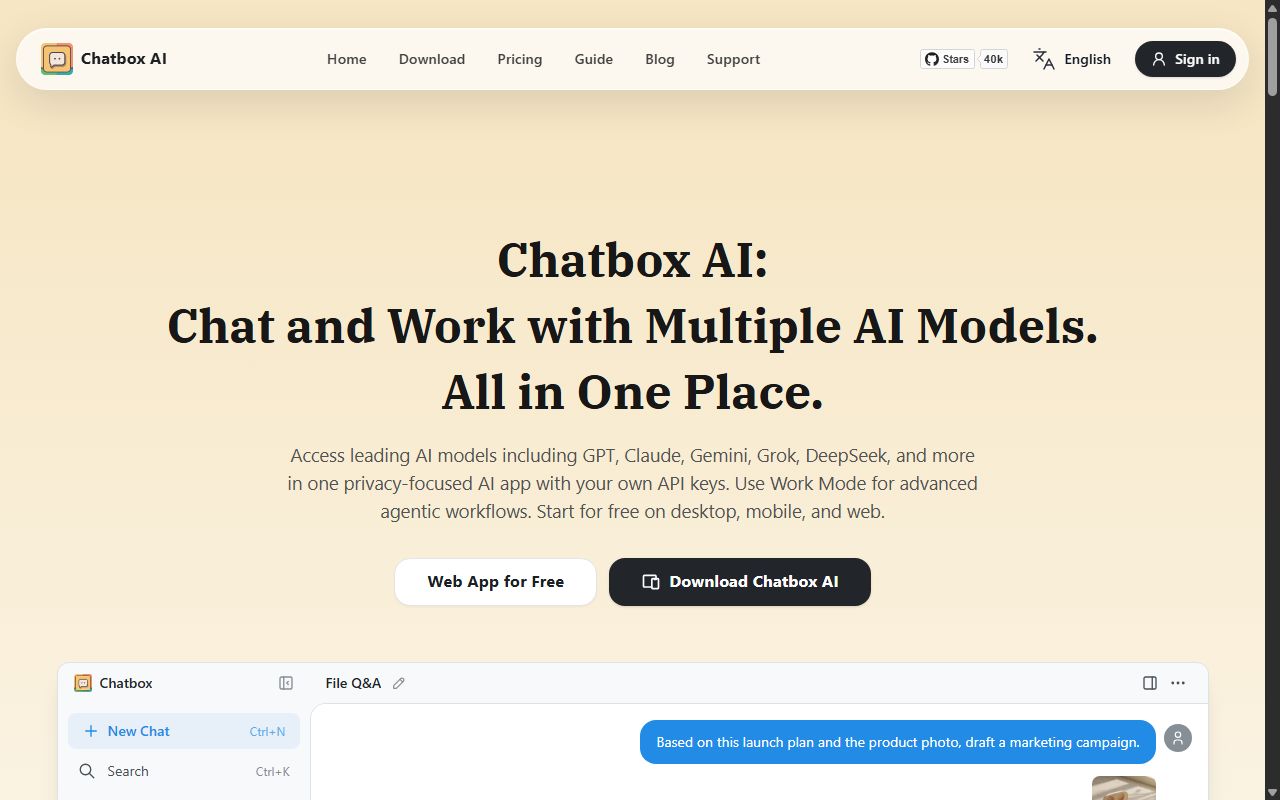
Method 1: Chatbox AI (Fastest Standalone Desktop App)
For beginners who want an instant desktop app without configuring web servers or Docker containers, Chatbox AI is the easiest choice:
- Download and install Chatbox AI from chatboxai.app.
- Open the app and navigate to Settings > Model Provider.
- Select Ollama API as the provider. The default host URL is already set to
http://127.0.0.1:11434. - Click the Model dropdown. Chatbox will automatically detect all the models you downloaded in Step 2 (e.g.,
deepseek-r1:8b,llama3.3). - Save settings and begin chatting in a clean, multi-tab window with full conversation history and export features.
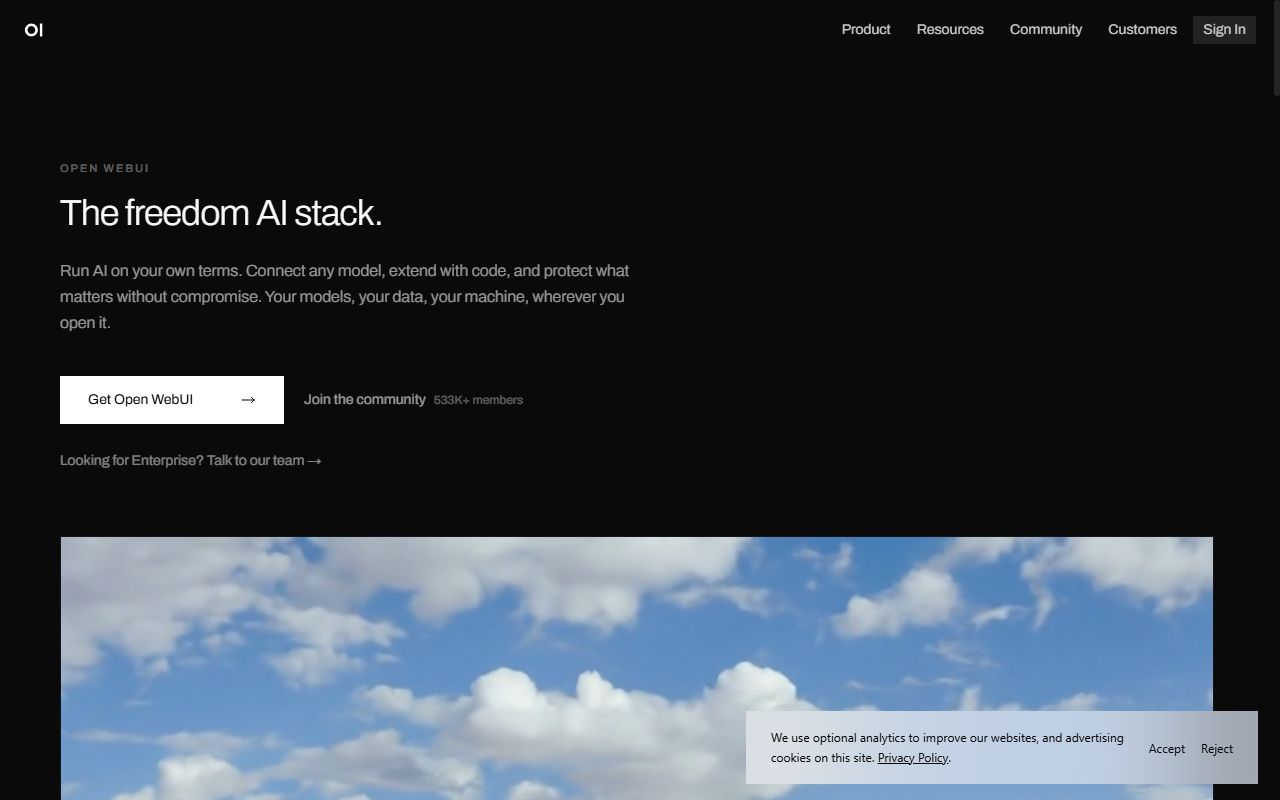
Method 2: Open WebUI (The Ultimate Feature-Rich Browser UI)
If you want a 1:1 replica of ChatGPT’s interface complete with document uploads (RAG), voice input, model switching, and web search integration, Open WebUI is the gold standard. If you have Docker installed, you can spin it up with a single command:
docker run -d -p 3000:8080 --add-host=host.docker.internal:host-gateway -v open-webui:/app/backend/data --name open-webui --restart always ghcr.io/open-webui/open-webui:mainOnce started, open your web browser to http://localhost:3000 to access your private, self-hosted AI portal.
Local AI vs Cloud AI: What to Expect
How does a small local model such as DeepSeek-R1 (8B) compare with a cloud chatbot like ChatGPT for everyday writing and coding? This is a general comparison based on how the two approaches work, not a timed benchmark. Real speed depends heavily on your hardware, especially whether you have a dedicated graphics card.
| Factor | Local DeepSeek-R1 (8B) | Cloud ChatGPT | Better choice |
|---|---|---|---|
| Monthly cost | Free (you pay for your own hardware and electricity) | Free plan, or a paid plan such as ChatGPT Plus | Local AI |
| Privacy | Your prompts stay on your computer | Prompts are processed on the provider’s servers | Local AI |
| Works offline | Yes, once the model is downloaded | No, needs an internet connection | Local AI |
| Speed | Depends on your PC; much faster with a dedicated GPU | Usually fast, regardless of your computer | Cloud AI |
| Up-to-date knowledge | Limited to what the model learned in training; no web search | Can search the web for recent information | Cloud AI |
| Complex coding and reasoning | Good for everyday help; small models make more mistakes | Generally stronger on long or complex tasks | Cloud AI |
Troubleshooting Common Local AI Issues
If you encounter unexpected behavior during setup, these quick fixes resolve 95% of common local LLM hurdles:
- Error: “Model requires more system memory than available”: This occurs when trying to load a parameter size that exceeds your available RAM (e.g., trying to run a 32B model on 16GB of RAM). Switch to the 7B or 8B variant, or pull a smaller quantization like
q4_k_m. - Slow Generation Speed (1 to 3 tokens per second): If generation feels sluggish, your PC is likely offloading zero layers to your GPU. In Ollama, ensure your NVIDIA or AMD graphics drivers are up to date. On Windows, check Task Manager to confirm your GPU memory is active during generation.
- Ollama Service Not Found / Connection Refused: Verify that the Ollama service is running in your background tray. If it stopped unexpectedly, open PowerShell and type
ollama serveto manually relaunch the local daemon.
Related guides on AiTalkings:
Frequently Asked Questions (FAQ)
Can I run local AI without a dedicated GPU?
Yes. Ollama natively supports pure CPU inference using modern AVX2 vector instructions. A dedicated GPU with 6GB to 12GB of VRAM makes answers appear much faster. Without one, a modern Intel Core i5/i7 or AMD Ryzen processor can still run small 3B and 7B/8B quantized models, just more slowly.
Does running local AI slow down my computer when I am not using it?
No. By default, Ollama unloads the model from active RAM and VRAM after 5 minutes of inactivity. When you are not prompting the model, its background idle footprint is virtually zero CPU and less than 30MB of RAM.
Is DeepSeek-R1 safe to run locally?
Yes, completely safe. When you run DeepSeek-R1 through Ollama, you are executing the mathematical open-weights locally inside an isolated executable. It does not send telemetry, user prompts, or local files over the network back to third-party servers.
Final Thoughts: The Future of Computing is Local
The pace of open-source artificial intelligence has completely reshaped what personal computers can do. Running local models like DeepSeek-R1 and Llama 3 via Ollama gives you the freedom to explore, code, and create with zero subscription costs and absolute privacy.
If you have not tried local AI yet, download Ollama today, pull the deepseek-r1:8b model, and experience what it feels like to possess state-of-the-art intelligence operating entirely within your own hardware.


