Best AI Tools to Convert YouTube Videos to Presentations
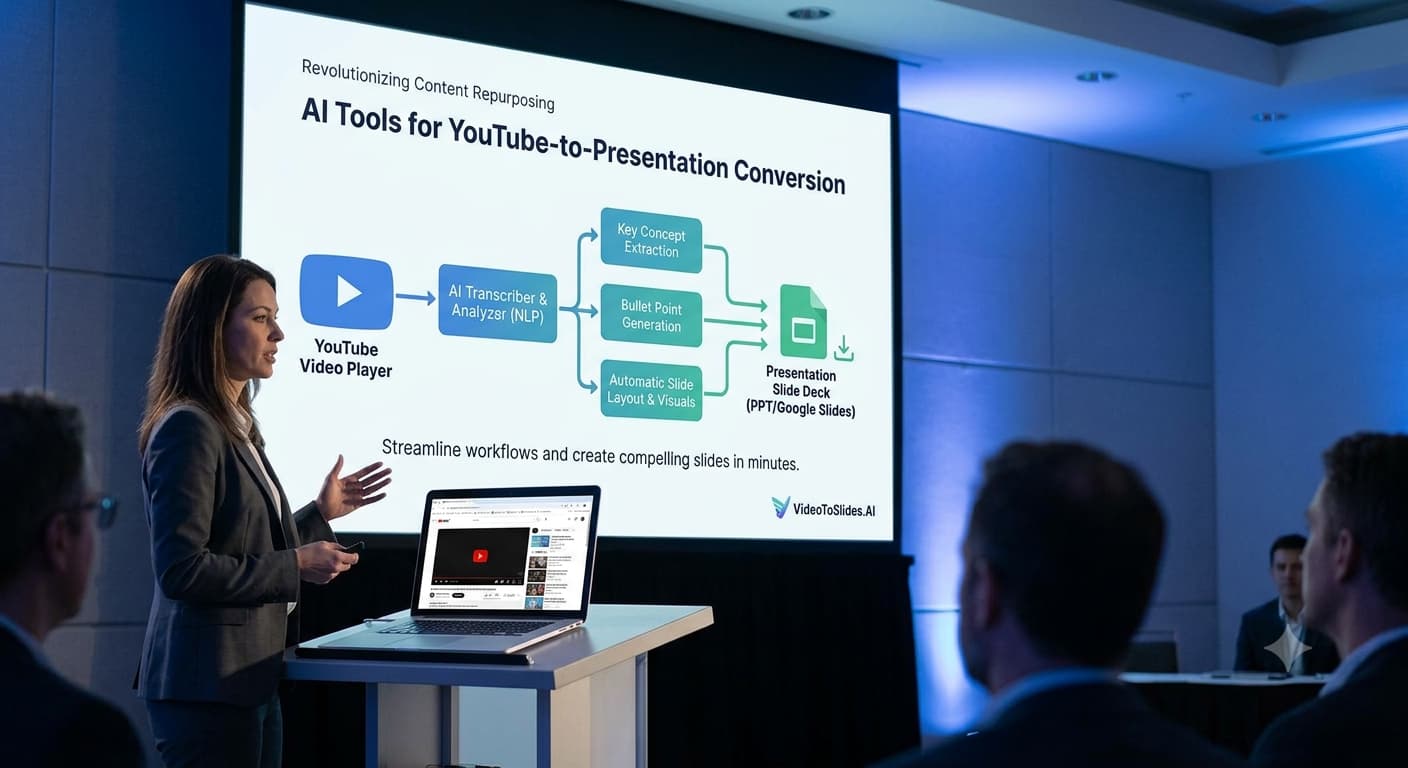
You just watched an hour-long YouTube tutorial, webinar, or conference talk. The content was genuinely useful. But now you need to share the key points with your team, turn it into study notes, or present the ideas to a client and nobody is going to sit through the full video with you. Manually watching, pausing, taking notes, and building slides from a YouTube video can take two to three hours. AI tools now do that same job in under five minutes.
This guide covers the best AI tools that convert YouTube videos into presentations, slide decks, and structured summaries free and paid and exactly how to use each one.

How These AI Tools Actually Work
Before picking a tool, it helps to understand what is happening under the hood because not all of these tools work the same way:
| Method | How It Works | Accuracy |
|---|---|---|
| Transcript-based | AI pulls the auto-generated YouTube transcript, then structures it into slides | Fast and widely available, accuracy depends on transcript quality |
| Audio transcription | AI generates its own transcript from the video audio, often more accurate than YouTube’s auto-captions | Slower but more accurate for complex or technical content |
| Visual + audio analysis | AI reads both the spoken content and on-screen visuals to structure slides | Most accurate, available in fewer tools |
Most tools below use the transcript method which works well for clearly spoken, well-captioned content but can struggle with heavy accents, fast speech, or videos with poor auto-captions.
1. Otter.ai (otter.ai) Best for Transcripts + Summary Slides
Free tier: Yes, 300 minutes of transcription per month free
Otter.ai is best known as a meeting transcription tool, but it handles YouTube video transcription equally well when you share the video URL or upload the audio. It then generates an AI summary with key points that can be exported and built into a presentation.
How to use it for YouTube videos:
- Copy the YouTube video URL
- In Otter.ai, use the import or record function to process the video’s audio
- Let Otter generate a full transcript with speaker identification
- Use the AI summary section to extract the key points automatically
- Export the summary and paste it into your presentation tool of choice
Best for: Long-form YouTube content like lectures, interviews, and webinars where an accurate transcript is the priority before building slides.
2. Tome (tome.app) Best for Turning a Summary into a Full Presentation
Free tier: Yes, free plan with limited AI credits
Tome is an AI-native presentation builder you give it a topic, a summary, or a block of text, and it generates a complete slide deck with structure, content, and visuals automatically.
How to use it for YouTube videos:
- Use a YouTube summary tool (like ChatGPT or NoteGPT below) to get a structured summary of the video first
- Paste that summary into Tome with the instruction: “Turn this into a presentation with one key idea per slide”
- Tome generates the full deck adjust slide order, edit content, and swap visuals as needed
Best for: Creating a polished, visually designed presentation from YouTube content rather than just a structured text outline.
3. NoteGPT (notegpt.io) Best Free All-in-One YouTube Summariser to Slides
Free tier: Yes, generous free plan
NoteGPT is specifically built for the YouTube-to-notes-to-slides workflow. Paste a YouTube URL, and it generates a structured summary with timestamps, key takeaways, and a mind map then lets you export that structure directly into a slide format.
How to use it:
- Go to notegpt.io and paste any YouTube video URL
- NoteGPT pulls the transcript and generates a structured summary automatically
- Review the key points each section becomes a potential slide
- Use the export options to download as a structured outline or directly into a presentation format
Best for: Anyone who wants the fastest free route from YouTube URL to a usable presentation outline this is the most direct tool for that specific task on this list.
4. ChatGPT (chat.openai.com) Best for Custom Slide Structure from Any Video
Free tier: Yes, free tier available
ChatGPT does not pull YouTube video content directly, but combining it with YouTube’s own transcript feature creates a powerful free workflow that gives you full control over how the presentation is structured.
Step-by-step free workflow:
- Open the YouTube video and click the three dots below the video title
- Select “Show transcript” the full auto-generated transcript appears on the right
- Copy the entire transcript text
- Paste it into ChatGPT with this prompt:
“Here is the transcript of a YouTube video. Turn it into a structured presentation outline with a title slide, one key idea per slide, bullet points under each slide, and a conclusion slide. Keep each slide to 3-4 bullet points maximum: [paste transcript]”
- ChatGPT returns a full slide-by-slide outline you can copy directly into PowerPoint, Google Slides, or Canva
Best for: Maximum control over the final structure you can tell ChatGPT exactly how many slides, what tone, what level of detail, and what to emphasise.
5. SlidesAI (slidesai.io) Best for Direct Google Slides Integration
Free tier: Yes, limited free presentations per month
SlidesAI is a Google Slides add-on that takes text input including a YouTube transcript or summary and generates a complete Google Slides presentation automatically, including slide layout selection and basic design.
How to use it for YouTube videos:
- Get your YouTube transcript using the method above (Show transcript → copy text)
- Open Google Slides and install the SlidesAI add-on from the Google Workspace Marketplace
- Open SlidesAI from the Extensions menu, paste your transcript, and set your preferences (number of slides, presentation type)
- Click Generate SlidesAI builds the full deck inside Google Slides directly
Best for: Users who live in Google Slides and want AI to build the deck directly in their existing environment without exporting and importing files.
6. Gamma (gamma.app) Best for Beautiful Presentations from Video Summaries
Free tier: Yes, free plan with limited AI generations
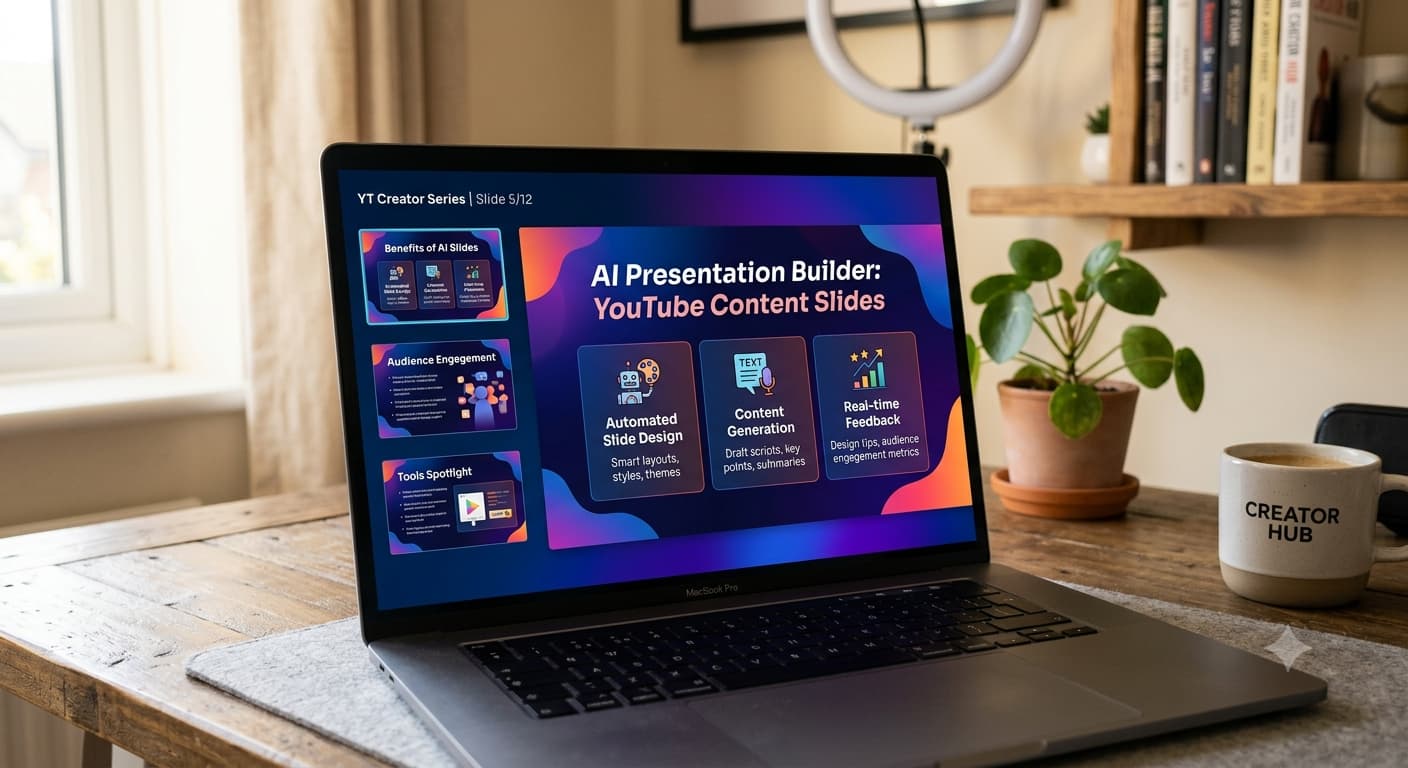
Gamma creates visually polished presentations, documents, and webpages from text input paste a YouTube summary or outline and it builds a deck that looks genuinely designed, not like a default PowerPoint template.
How to use it for YouTube videos:
- Generate a summary or outline from your YouTube video using NoteGPT or ChatGPT
- Go to gamma.app and click “Generate with AI”
- Paste your outline and describe the presentation style you want
- Gamma generates a full deck with visual hierarchy, card-style layouts, and suggested images
- Customise colours, fonts, and content as needed
Best for: Anyone who wants the output to look professionally designed without spending time on slide formatting Gamma’s default output is noticeably more polished than most AI presentation tools.
7. Decktopus (decktopus.com) Best for Presentation + Speaker Notes Together
Free tier: Free trial available
Decktopus generates complete presentations from text input with one feature that stands out for YouTube content specifically it automatically generates speaker notes alongside each slide, which is useful when you are presenting someone else’s video content to an audience and need talking points beyond the bullet points.
How to use it for YouTube videos:
- Summarise the YouTube video using NoteGPT or ChatGPT
- Paste the summary into Decktopus with a description of the audience and purpose
- Decktopus generates slides with bullet points and matching speaker notes automatically
- Export as PowerPoint or present directly from the Decktopus interface
Best for: Educators, trainers, and presenters who need both the slide content and the spoken talking points generated from a YouTube video.
8. Canva AI Presentation Maker (canva.com) Best for Design-Heavy Slide Decks
Free tier: Yes, generous free plan
Canva’s AI presentation feature takes a topic or text summary and generates a complete, visually designed slide deck using Canva’s design system giving you access to professional templates, brand colours, and stock imagery as part of the generation process.
How to use it for YouTube videos:
- Get a structured summary from the YouTube video using ChatGPT or NoteGPT
- In Canva, go to Presentations → Generate with AI
- Paste your summary or describe the video topic and key points
- Canva generates a designed deck swap templates, adjust colours, and add your branding
- Present directly from Canva or export as PowerPoint or PDF
Best for: Content creators and marketers who want a visually branded presentation rather than a plain outline-style deck.
Quick Comparison Table
| Tool | Free Tier | Best For | Direct YouTube Input |
|---|---|---|---|
| Otter.ai | 300 min/month free | Accurate transcription first | No, needs audio import |
| Tome | Limited free credits | Full AI-generated presentation from summary | No, needs text input |
| NoteGPT | Generous free plan | Fastest YouTube URL to outline workflow | Yes paste URL directly |
| ChatGPT | Free tier available | Custom structure, full control | No, needs transcript paste |
| SlidesAI | Limited free presentations | Direct Google Slides integration | No, needs text input |
| Gamma | Limited free generations | Visually polished output | No, needs text input |
| Decktopus | Free trial | Slides + speaker notes together | No, needs text input |
| Canva AI | Generous free plan | Design-heavy branded decks | No, needs text input |

The Fastest Free Workflow (Step by Step)
If you want the quickest possible route from YouTube video to usable presentation using only free tools:
- Open the YouTube video and click the three dots below the title → Show transcript
- Copy the full transcript text
- Go to NoteGPT (notegpt.io) and paste the YouTube URL for a structured summary or paste the transcript into ChatGPT free with the slide outline prompt above
- Copy the structured outline from either tool
- Open Canva free → Presentations → paste your outline into the AI generator or manually build slides from the outline
Total time for a 30-minute YouTube video: typically under 10 minutes end to end.
Tips for Better Results
- Clean up the transcript first YouTube auto-captions sometimes miss words or add errors, especially for technical terms. A quick scan before pasting into an AI tool improves the output significantly.
- Tell the AI your audience “Turn this into a presentation for a non-technical business audience” produces very different slides than the same prompt without that context.
- Limit slides per idea ask the AI for a maximum of 3-4 bullet points per slide. More than that and slides become unreadable during an actual presentation.
- Always review before presenting AI-generated slides occasionally miss the main point of a section or over-emphasise a minor detail. A five-minute human review before presenting is always worth it.
The Bottom Line
Turning a YouTube video into a presentation used to mean rewatching, pausing, taking notes, and building slides manually a process that could easily eat an afternoon.
The tools above have collapsed that workflow into minutes. NoteGPT handles the most direct YouTube-to-outline path for free. ChatGPT gives you the most control over structure. Gamma and Canva produce the most polished visual output. And SlidesAI puts the whole process inside Google Slides if that is where you already work.
Pick the tool that matches where you want the final presentation to live Google Slides, Canva, PowerPoint, or a standalone tool and use the free tier to process your next YouTube video before deciding whether you need to upgrade.